
Alerts
Updated 8 September 2026
Open the Alerts centre
- Click Alerts in the sidebar. The list opens with unread alerts first.
- Filter by status — read, unread or dismissed — using the chips along the top.
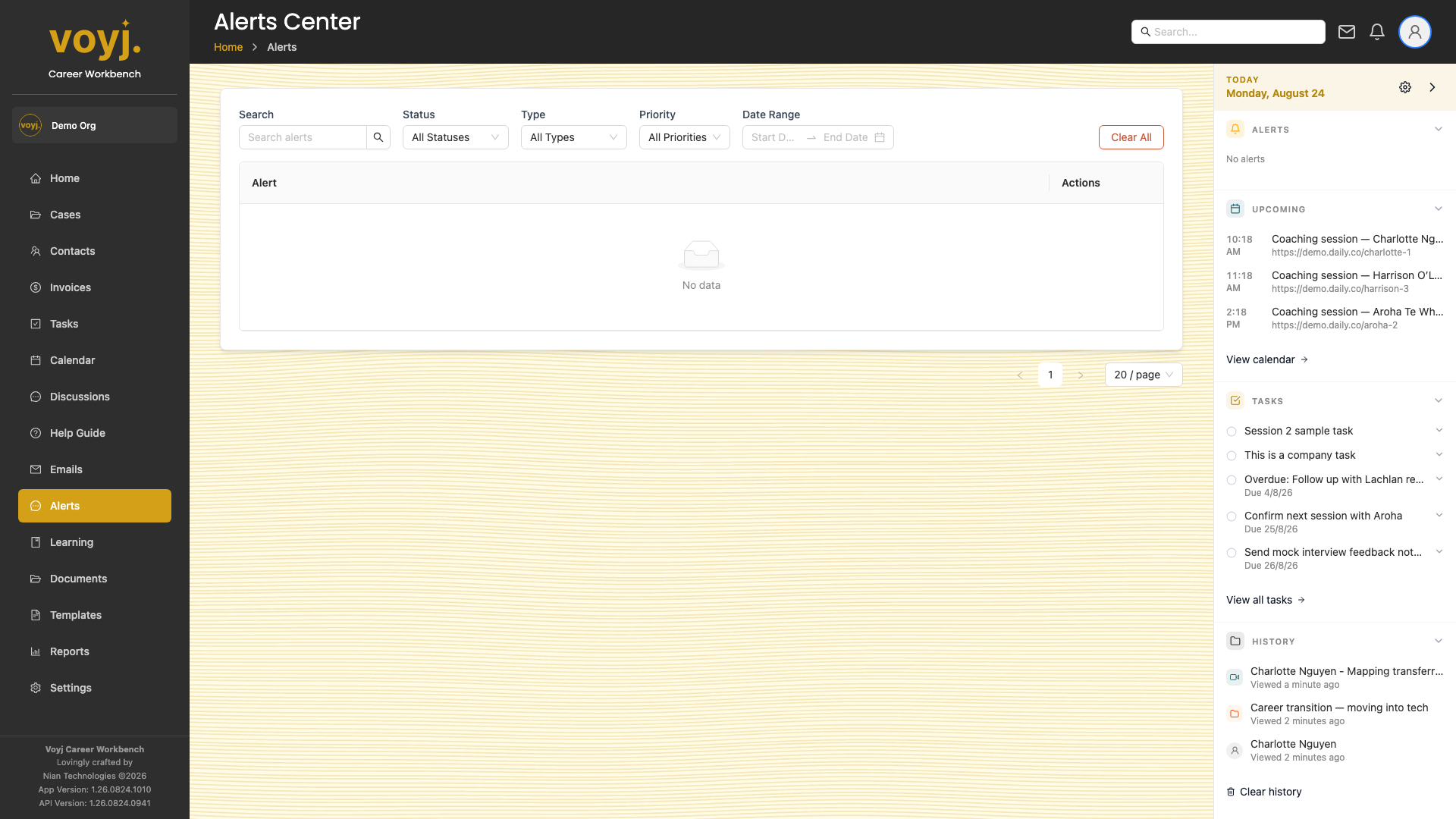
Alert categories
- Task
- Task assigned, completed or overdue.
- Meeting
- Session starting soon, session cancelled, recording ready.
- Incoming email routed to the shared inbox.
- System
- Platform news, security alerts, scheduled maintenance.
- Assignment
- New contact or case assigned to you.
- New topic
- New forum topic in a section you follow.
- Reply
- Reply to a forum topic you started or follow.
Mark all as read
- Click Mark all as read in the top-right toolbar. The unread badge on the bell icon disappears.
Open an alert
- Click any alert subject. The related case, contact, task or session opens in the right rail.
- Use the breadcrumb to step back to the Alerts list.
Dismiss an alert
- Click the dismiss (X) icon on the alert row. The alert moves to the Dismissed filter.
Change alert preferences
- Open Settings › Preferences › User.
- Scroll to the Notifications section.
- Toggle the categories you want to receive. You can also pick per-category channels (in-app, email or both).