
Calendar
Updated 8 September 2026
Switch between views
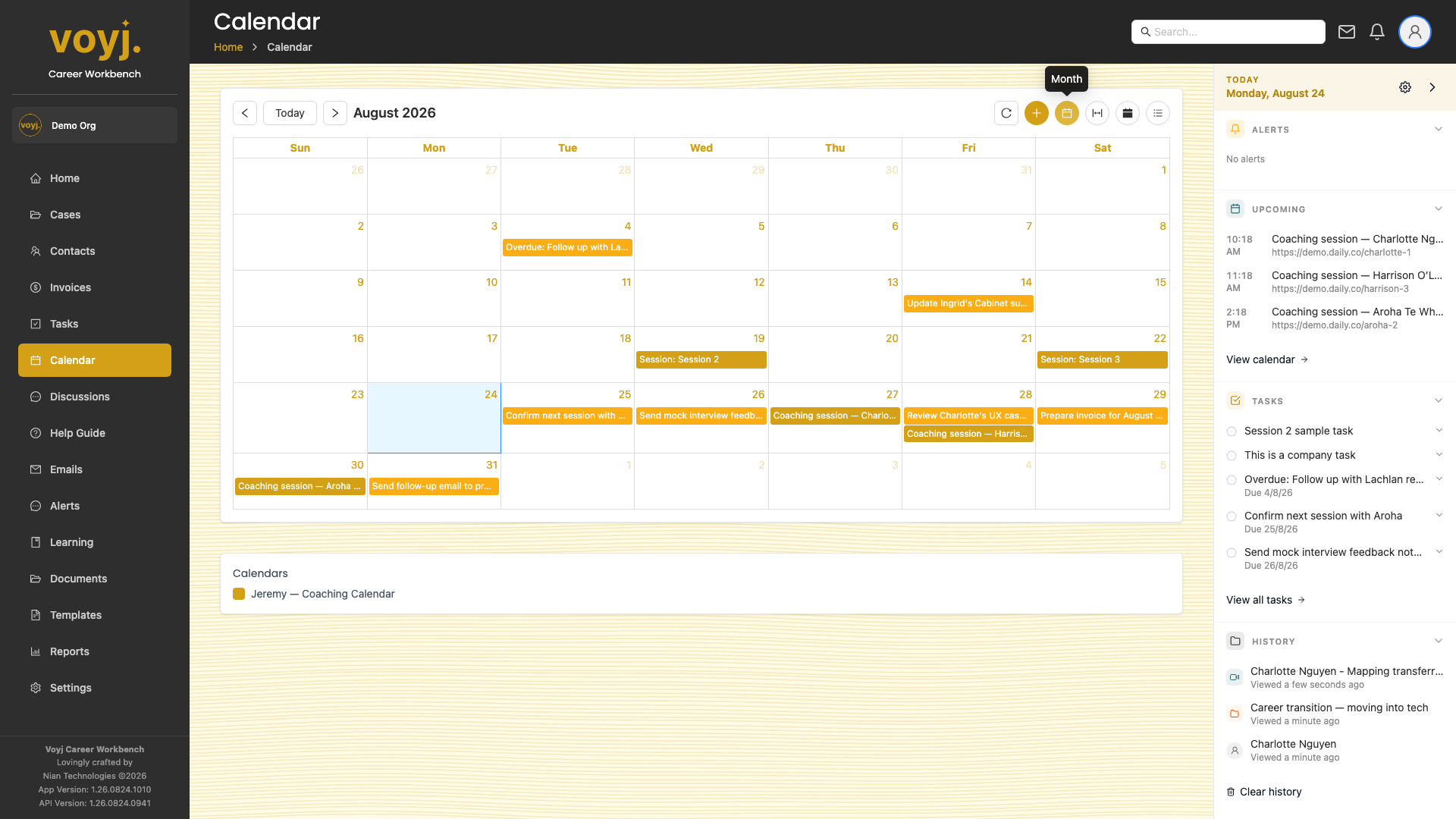
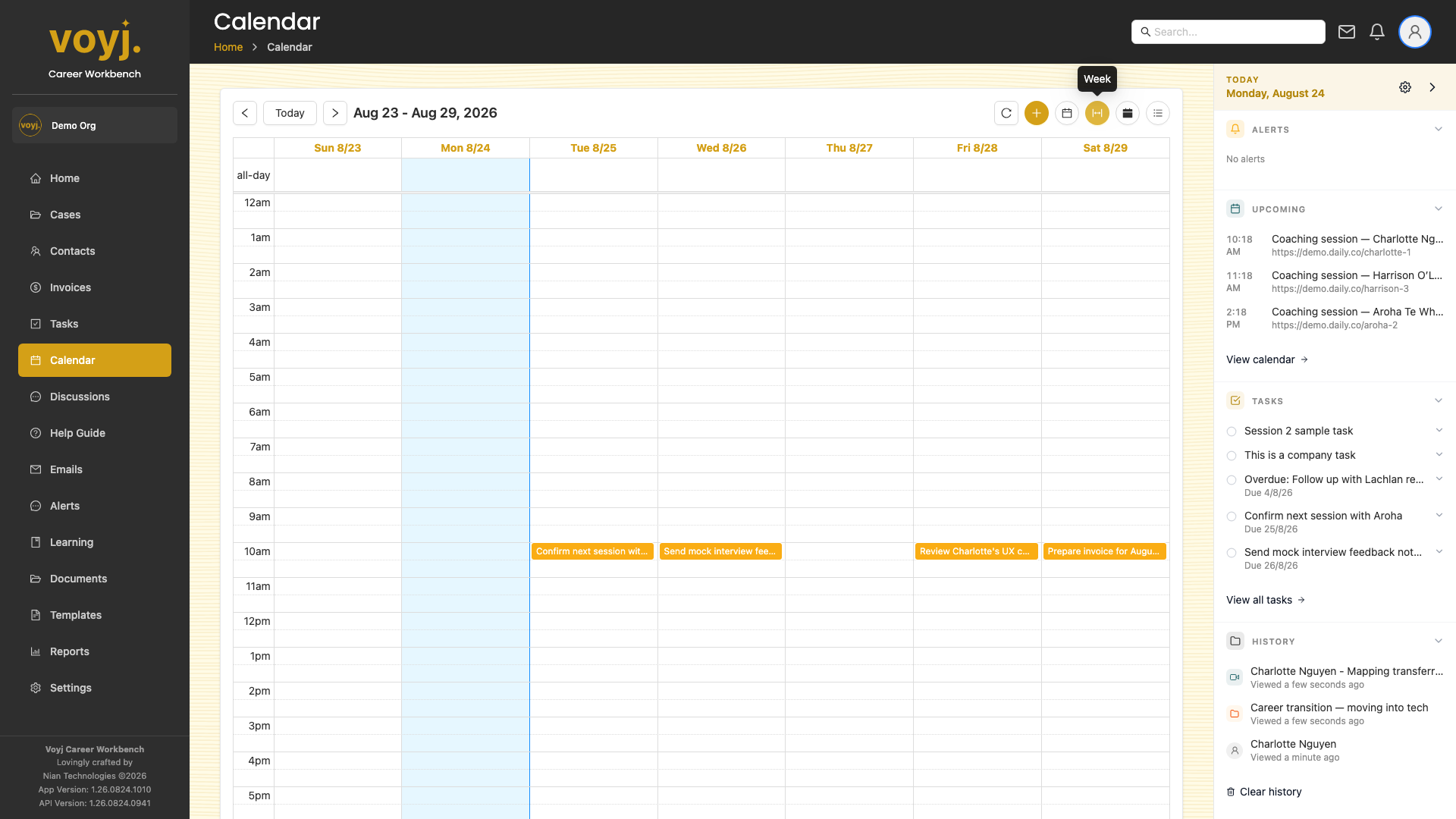
- Click Calendar in the sidebar. The default is week view.
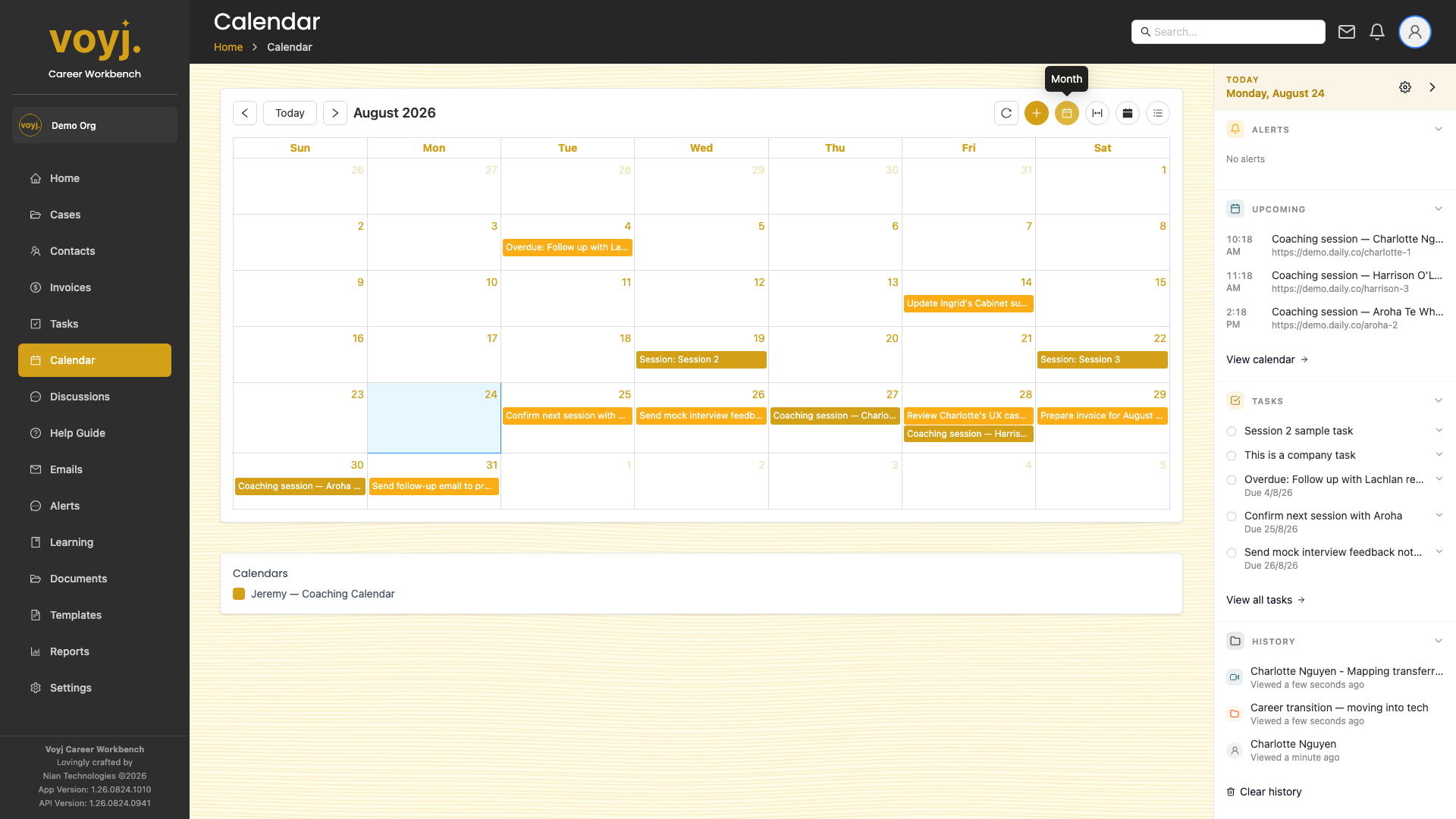
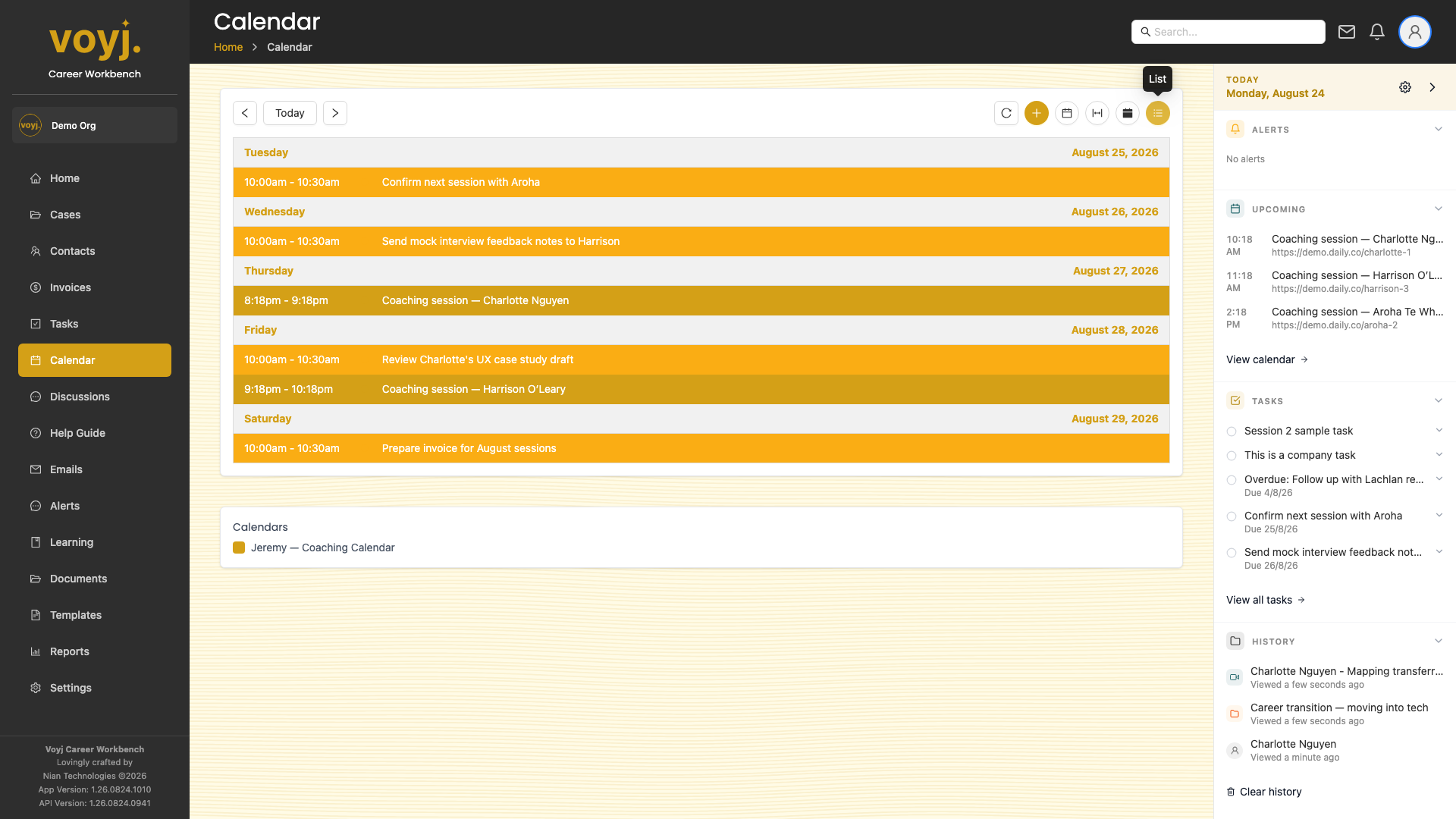
- Use the view selector in the top right to switch between Day, Week, Month and List views.
- Jump dates with the « and » arrows next to the current date, or click the date label to pick a specific day.
Add a new event
- Click any empty slot on the calendar. A quick-add popover opens.
- Type the title and choose the start and end time. Mark it as all-day if needed.
- Pick a colour to make the event easier to spot on the calendar.
- Save. The event appears on your calendar. If you linked Google Calendar or Outlook, it also appears there.
Reschedule an event
- Click and drag the event block to its new time slot. Voyj updates the linked record automatically.
- Or click the event to open it, then use the Edit button to change the date, time, duration or location.
- For sessions, the contact receives an updated invite by email.
Add attendees
- Click the event to open it.
- Click the Attendees field and type the contact's name, or pick from your contacts list.
- Save. Attendees receive an email invite and can accept or decline.
Forward an event
- Click the event to open it.
- Click the three-dot menu and pick Forward. The forward-email composer opens with the event details pre-filled.
- Add the recipient and send.
Refresh the calendar
- Click the circular arrow icon in the top-right of the calendar. Voyj re-fetches events from your linked calendars and updates the view.
- Or press
F5in your browser to do a full refresh.