
Communications
Updated 8 September 2026
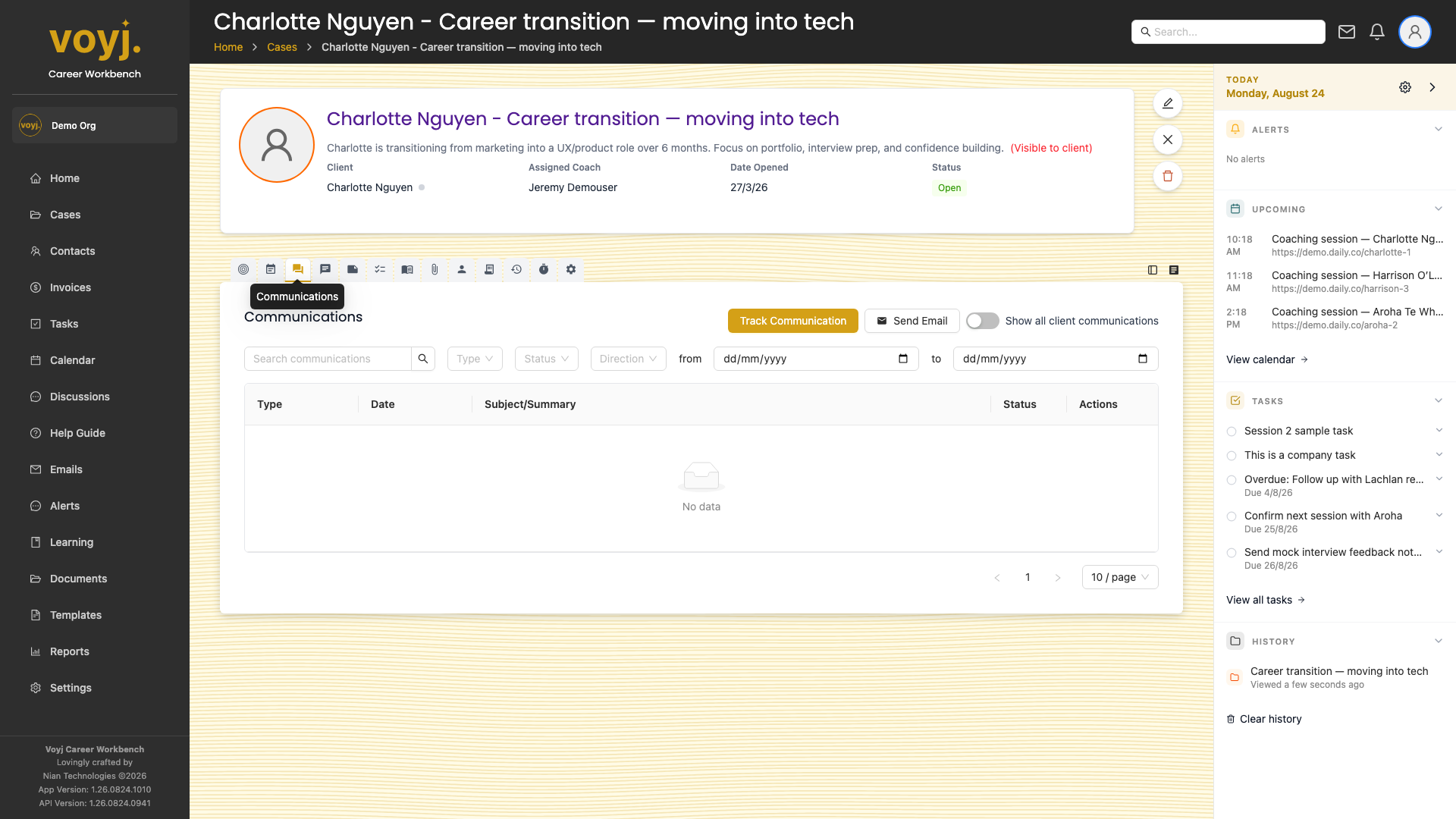
What you see on this tab
One row per communication. The row shows the type (email, call, text), the direction (inbound or outbound), the subject or summary, the status (sent, received, completed) and the timestamp. Click a row to expand the full conversation.
Filter the list
- Use the type filter chips along the top to show only Email, Call or Text.
- Use the direction filter to show only Inbound or Outbound.
- Click the date range picker to narrow the list to a specific period.
Add a manual communication
- Click + Log communication in the top-right.
- Pick the type: email, call or text.
- Pick the direction.
- Type a short summary. The full email body is captured automatically when the type is email.
- Save. The row appears at the top of the list.
Link an existing email to the case
- Open the email in the Emails app.
- Click the link-record icon and pick the case. The email now appears on the case's Communications tab.