
Courses
Updated 8 September 2026
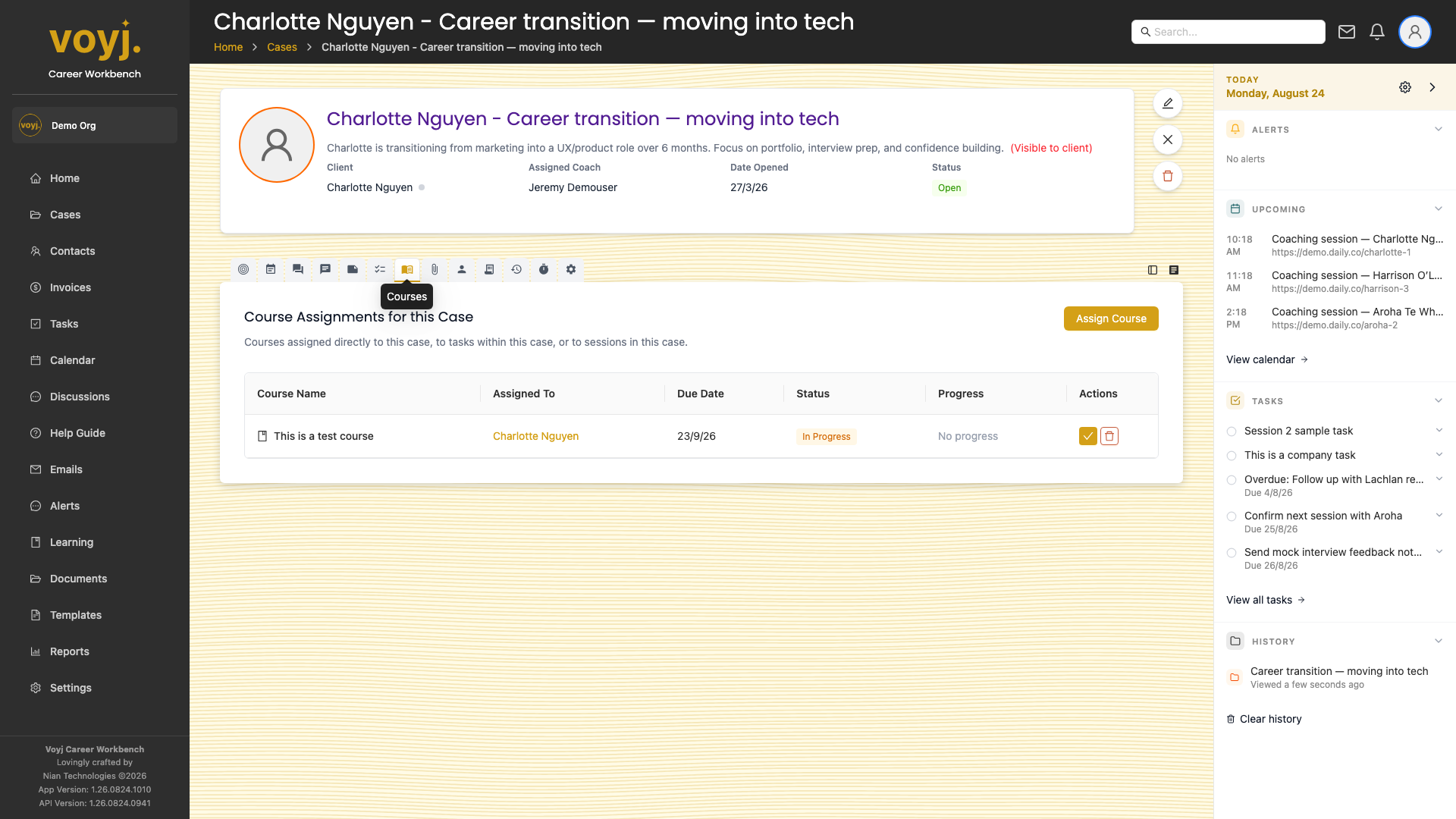
What you see on this tab
One row per assigned course. Each row shows the course name, the due date, the client's progress (percentage bar) and a quick link to the responses.
Assign a course
- Click + Assign course in the top-right.
- Pick a course from your library or the marketplace.
- Pick a due date and a starting screen if the client should resume from a specific point.
- Click Assign. The course appears in the table and in the client's portal.
Review client responses
- Click the View responses button on the course row.
- The coach results player shows every component response, with timestamps and the client's answers.
- Add a coach note on any response. The note is saved to the contact's record.
Mark complete
- Click the three-dot menu on the course row.
- Pick Mark complete. The contact is notified.