
Sessions
Updated 8 September 2026
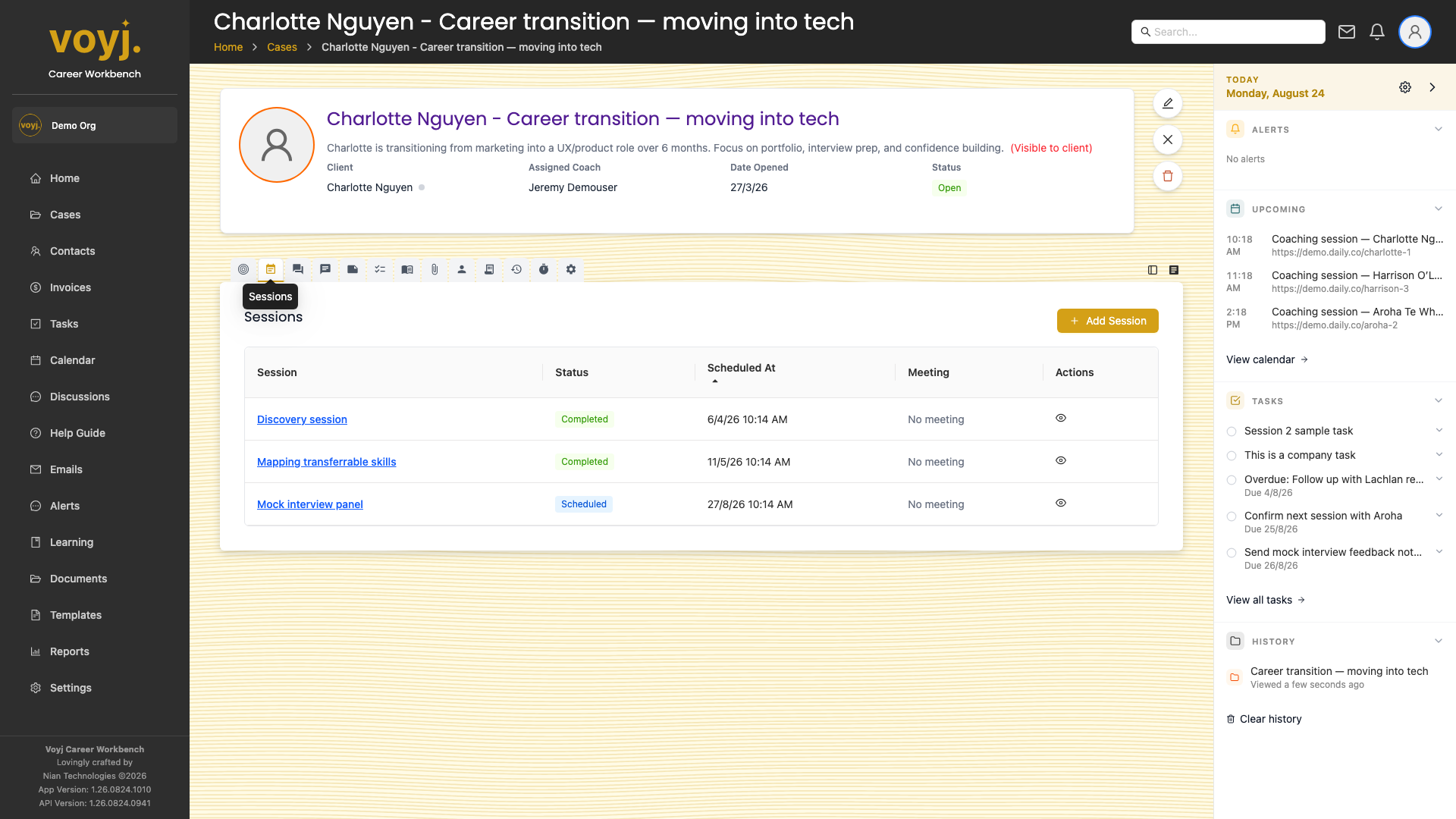
What you see on this tab
A table with one row per session. The table shows the session date, status, name, duration, billable amount and links to the session detail page. Completed sessions are greyed; upcoming sessions are bold.
Schedule a new session
- Click the plus icon in the top-right of the table.
- Pick a date, time and duration. Default duration is 60 minutes.
- Pick a service — this sets the rate and the default bill-to.
- Choose the meeting type: in-person address or online meeting URL.
- Click Save. The session appears in the table and on your calendar.
Reschedule or cancel a session
- Click the three-dot menu on the session row.
- Pick Reschedule or Cancel. Cancelling asks for a reason.
- Confirm. The contact receives an updated invite or cancellation by email.
Open the session detail page
- Click the session name to open the full session page. The session detail page has its own tab strip with the meeting area, transcripts, summary, time log, notes, tasks, courses, files, reminders and client tab.
- Use the back button to return to the case.