
Client Access
Updated 8 September 2026
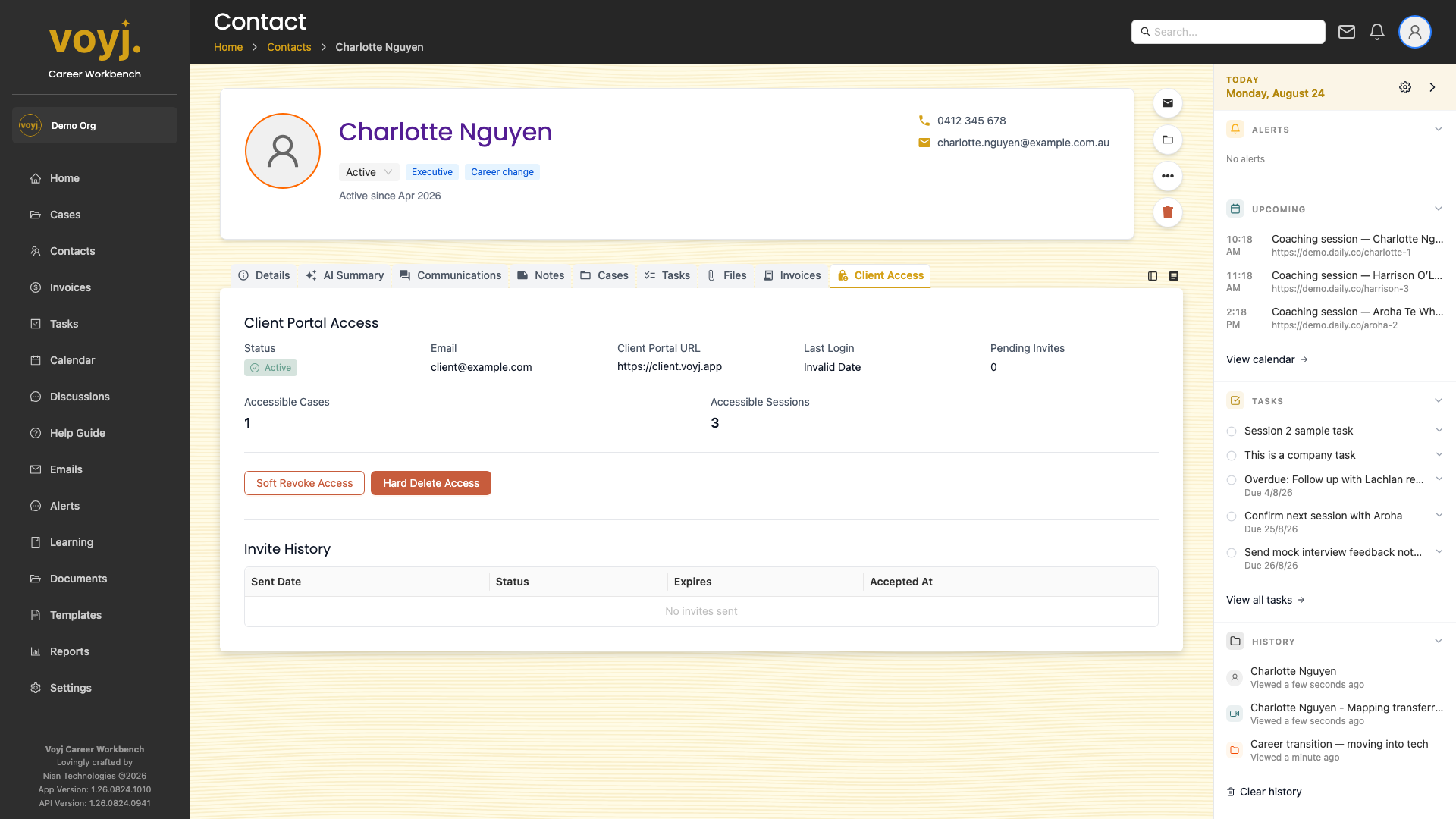
What you see on this tab
The contact's portal access status, the active session, the organisations the contact is linked to, and an invitation panel for sending a portal invite.
Invite the contact to the portal
- Click Send portal invite in the top-right.
- Confirm the email address.
- Voyj emails an invitation with a one-time link. The contact sets their password and signs in.
Revoke access
- Click Revoke on the active session row.
- Confirm. The contact is signed out and the session token is invalidated.
Field reference
- Portal access
- Active if the contact has signed in, Pending if an invite has been sent but not accepted, Revoked if access has been withdrawn, or None if no invite has been sent.
- Last sign in
- Timestamp of the contact's most recent portal sign-in. Updates every time they sign in.
- Linked cases
- The cases the contact can see in the portal. Toggled per case in the case settings.
- Linked organisations
- If the contact belongs to more than one organisation (rare), the portals for each.