
Dashboard
Updated 8 September 2026
What is on the Dashboard
The Dashboard groups your work into six cards. Each card refreshes on its own schedule; you can manually refresh a card with the circular arrow icon in its header.
- Message of the Day
- A short motivational quote that you can cycle through. Coaches use it as a five-second reset between sessions.
- Upcoming Tasks
- Your to-dos that are due soon, ordered by due date. Overdue tasks sit at the top in red.
- Upcoming Events
- Coaching sessions, organisation events and task deadlines on your calendar in the next two weeks. Each event has a one-click join link for online sessions.
- Recently Added Contacts
- New contacts added to the organisation, newest first. Click a contact to open their record.
- Recent Emails
- The most recent emails in your shared inbox. Click a thread to open it in the email reader.
- New Discussion Topics
- Topics posted to the forums you follow. Click a topic to read it and join the conversation.
- Alerts
- System and assignment alerts, with priority flags. Urgent alerts are red.
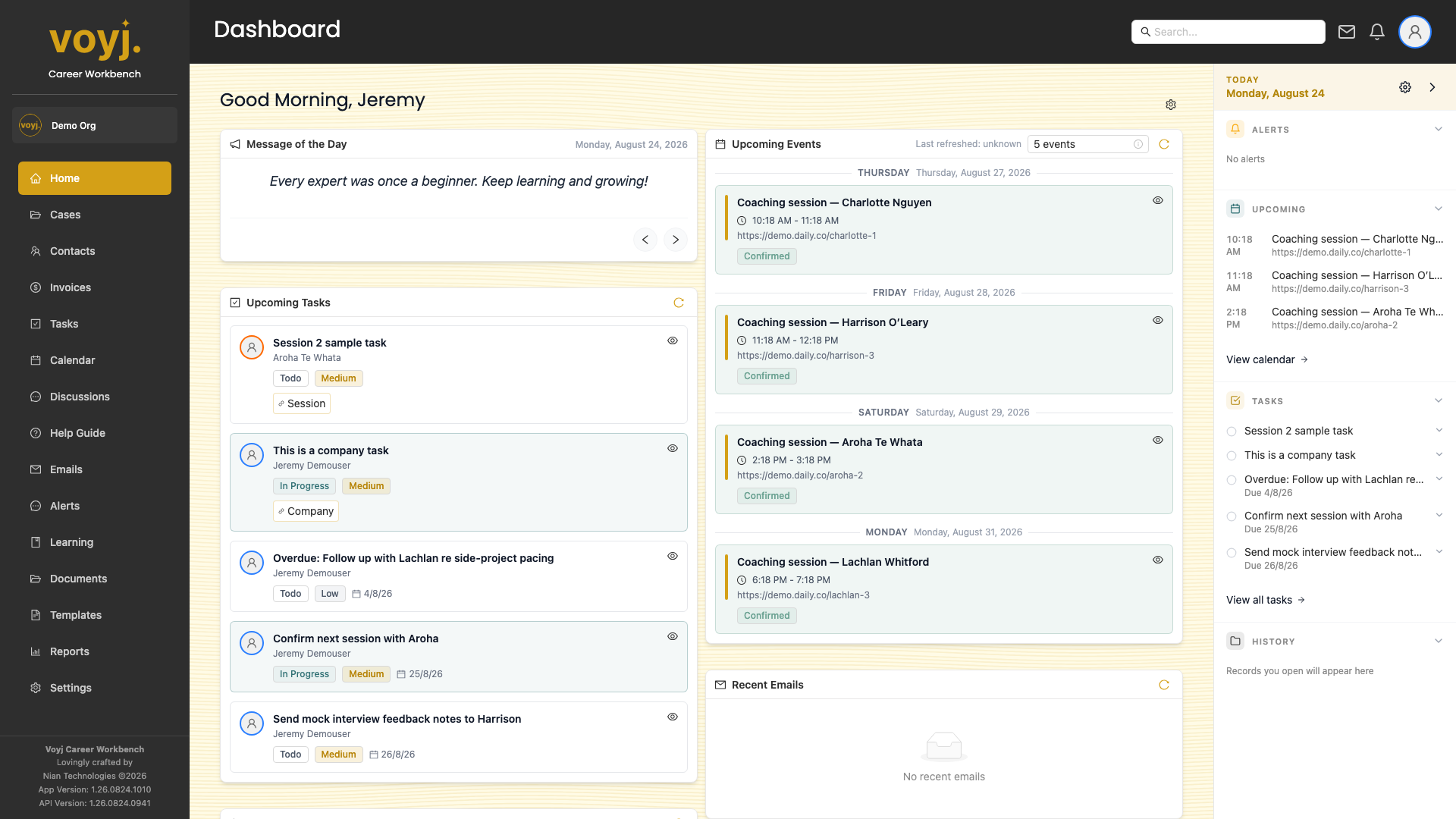
Read the Dashboard
- Skim the top row first. Upcoming Tasks and Recently Added Contacts tell you what needs attention today and who your newest clients are.
- Check Upcoming Events. This card lists the next coaching sessions on your calendar, with join links for online sessions.
- Glance at Alerts. Unread system and assignment alerts show here. Click an alert to jump to its detail page.
- Open the Message of the Day. Use the left and right arrows to cycle through motivational quotes for the day.
Customise the layout
- Open the layout menu. Click the Dashboard layout options button in the top-right of the heading row.
- Add or remove cards. Pick which panels you want visible. The Message of the Day, Tasks and Contacts are the most useful defaults.
- Save the layout. Your changes apply straight away and persist across sessions for this coach.
Open a record quickly
- Click any card row. A contact name opens the contact detail page; a task opens the task dialog; an event opens the session page.
- Use the right-hand Info Panel. It collapses to a Today strip on smaller screens and remembers which sections you have open.
Refresh a card
- Click the circular arrow icon in the top-right of any card. The card reloads its data without reloading the whole page.
- For an immediate full refresh, click your browser refresh button or press
F5.
Tip. Cards respect your role. Coaches see only the contacts and
cases they own; supervisors and admins see everything. The cards rearrange
themselves if a record you previously saw is reassigned.