
Documents
Updated 8 September 2026
Open Documents
- Click Documents in the sidebar. The library opens with folder navigation along the top.
- Click a folder name to open it. The breadcrumb at the top lets you step back.
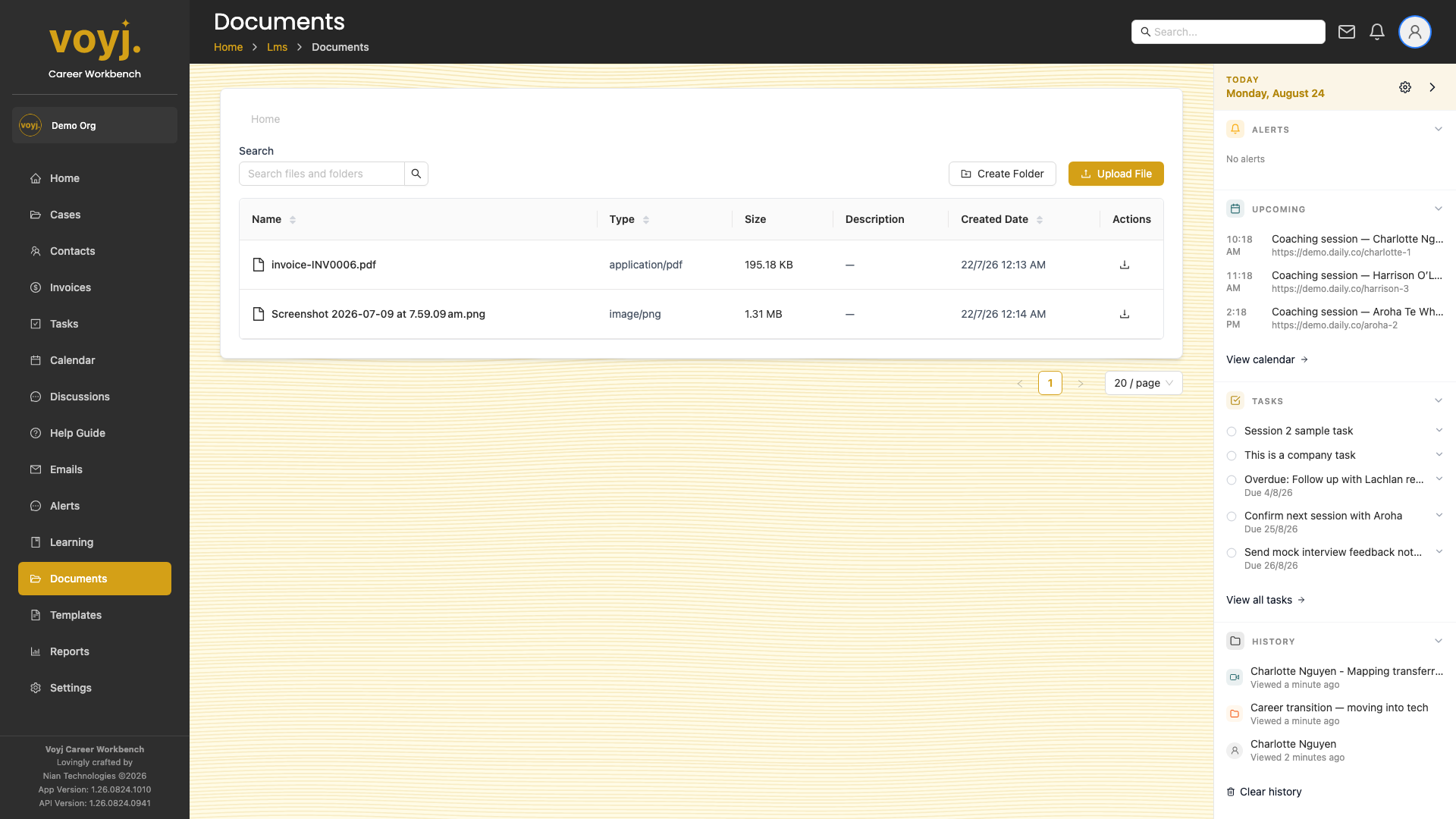
Upload files
- Click + Upload.
- Drag and drop files into the upload zone, or click Browse to pick from your computer.
- Choose the destination folder. You can upload into the current folder or create a new one.
- Wait for the upload progress bar. Files appear in the list as soon as each one finishes.
Create a folder
- Click + New folder in the top-right.
- Type a name. Folder names can include spaces, dashes and dots.
- Save. The folder appears in the breadcrumb and you can drop files into it.
Rename or move a file
- Click the three-dot menu on the file row.
- Pick Rename or Move.
- For Move, pick the destination folder.
Share a file with a client
- Open the file.
- Click Share and pick the case or contact.
- The file appears on the case's Files tab and (if enabled) on the contact's client portal.
File field reference
- Name
- The display name. Renamed on upload if it collides with an existing file.
- Type
- Detected from the file extension and MIME type. PDFs, images, slides, spreadsheets and common video formats are supported.
- Size
- File size in kilobytes. Voyj caps uploads at 100 MB per file.
- Uploaded by
- The coach or client who uploaded the file. Click to view their profile.
- Linked records
- Every case, session or contact the file is linked to. Add more by clicking Link.
- Tags
- Free-form labels. Use them to find related files quickly with the search box.