
Emails
Updated 8 September 2026
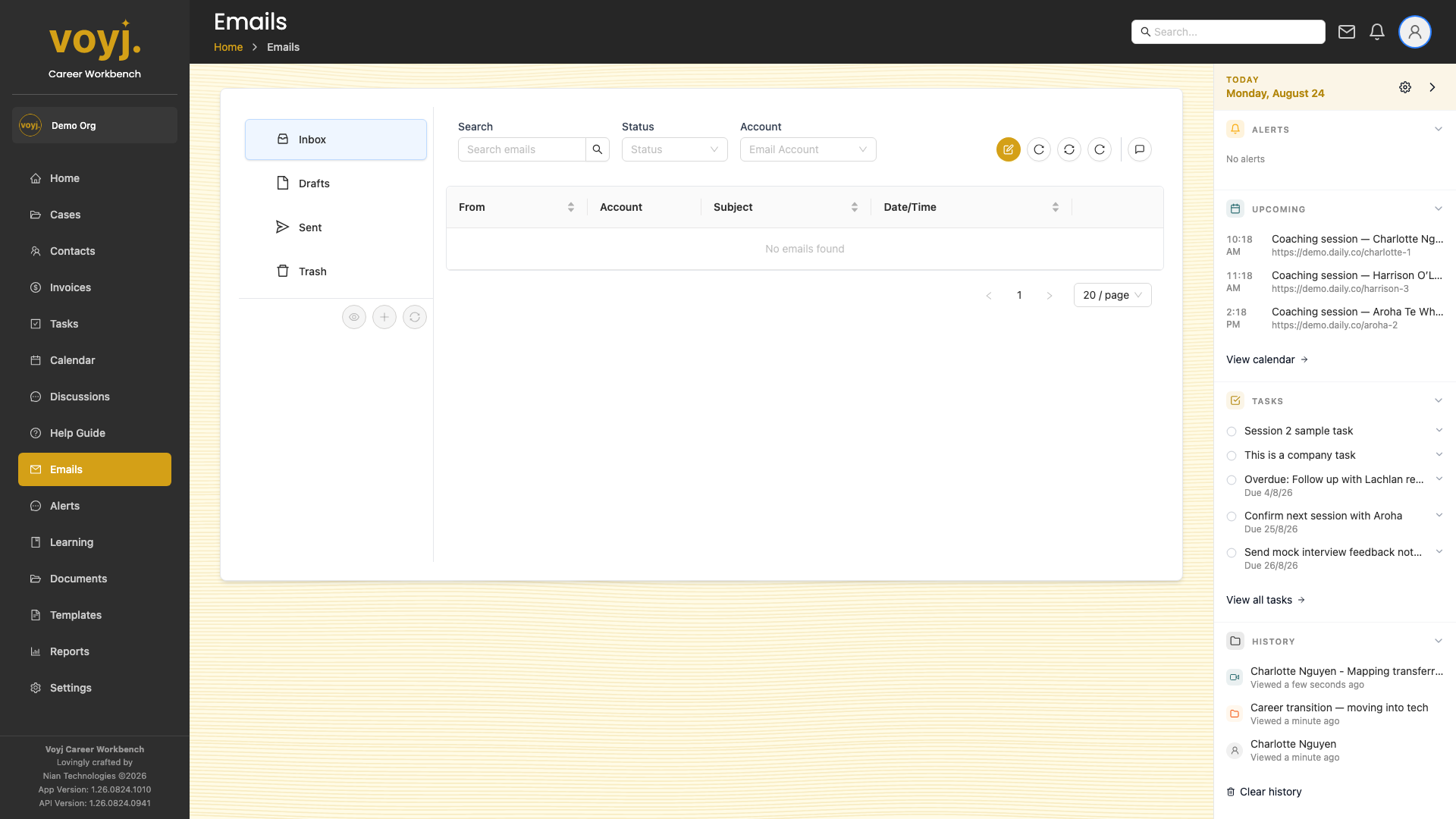
Open the inbox
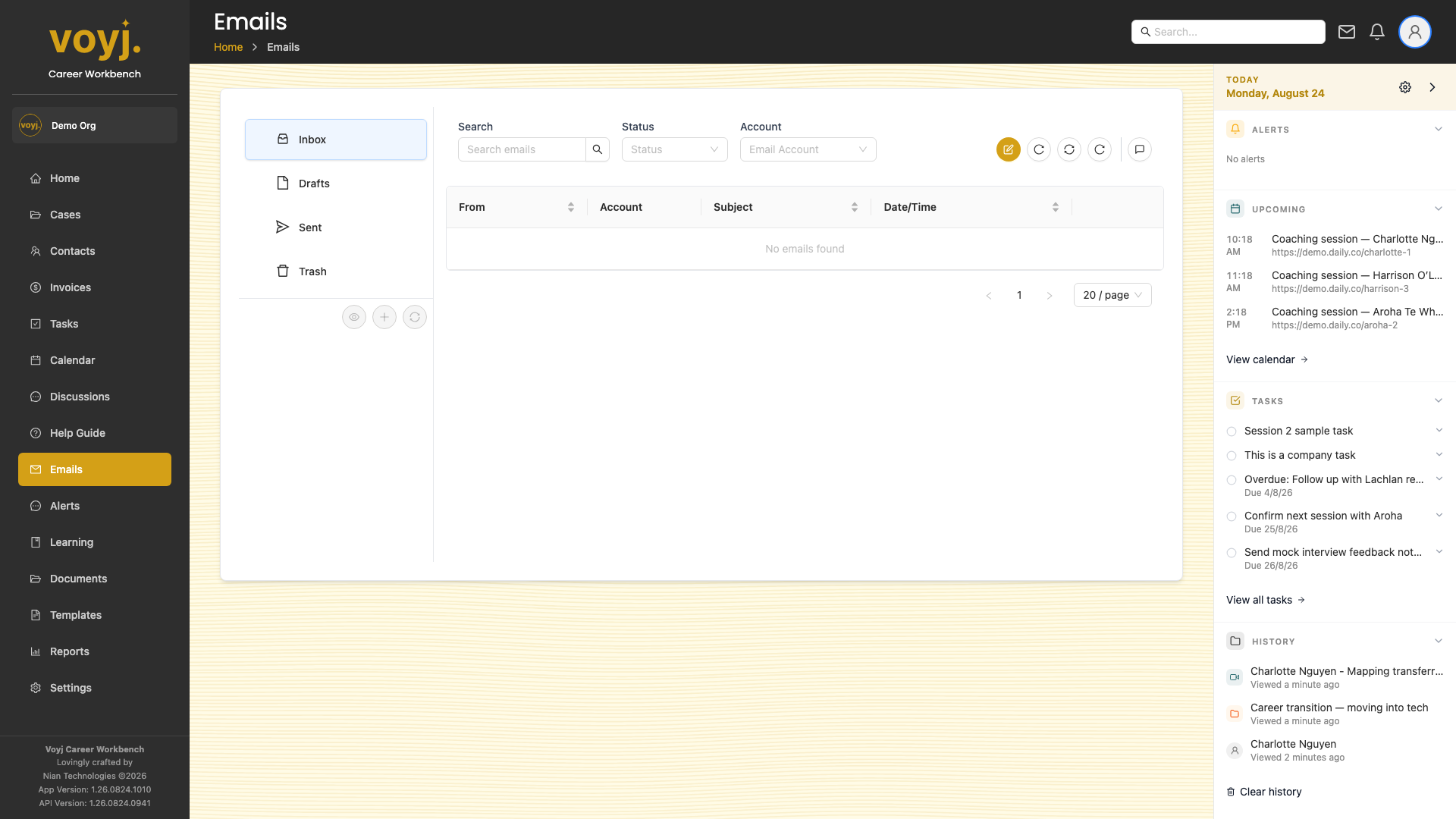
- Click Emails in the sidebar. The default view is the Inbox.
- Switch folders in the side panel: Inbox, Drafts, Sent and Trash.
Read an email
- Click a subject line. The conversation expands below or in a detail modal, depending on the screen width.
- Use the linked-record panel on the right to jump to the case or contact this email is connected to.
- Use the reply, reply-all and forward buttons at the top of the conversation to keep the thread going.
Compose a new email
- Click Compose. The composer opens as a full-screen modal.
- Add recipients. Type names or pick from your contacts. Multiple recipients are supported; use CC and BCC for copies.
- Pick a template from the message bar above the body if you have one saved. Templates support variables that fill in with the contact's data.
- Insert attachments. Use the paperclip icon to add files from your library or upload new ones.
- Send or save as draft. Voyj sends through the linked Gmail, Outlook or IMAP account, or shows the message in Drafts if you close the modal.
Composer field reference
- To / CC / BCC *
- At least one recipient is required. Type a name and pick from the suggestions, or paste an email address. Voyj matches typed names against your contacts.
- Subject
- The email subject line. Pre-filled if you picked a template that has one.
- Body
- Rich-text body. Use the formatting bar for bold, italic, lists, links and headings.
- Template
- Pick a template to insert its body and subject. Variables in the template (for example
{{contact.first_name}}) are replaced with the recipient's data. - Attachments
- Files from your library or new uploads. Voyj scans attachments for viruses before sending.
- Linked record
- Attach the email to a case, contact, session or company. Linked emails appear on the record's Communications tab.
- Signature
- Append your saved signature. Manage signatures under Settings › Signatures.
View Sent emails
- Click Sent in the folder panel.
- Click any message to see delivery status and replies.
Save a draft
- Click the dropdown arrow next to Send and pick Save draft.
- Find the draft in the Drafts folder and click to resume editing.
Move to Trash
- Open the email and click the trash icon. The message moves to Trash.
- Voyj empties the trash automatically after 30 days. You can also empty it manually from the folder panel.