
Files
Updated 8 September 2026
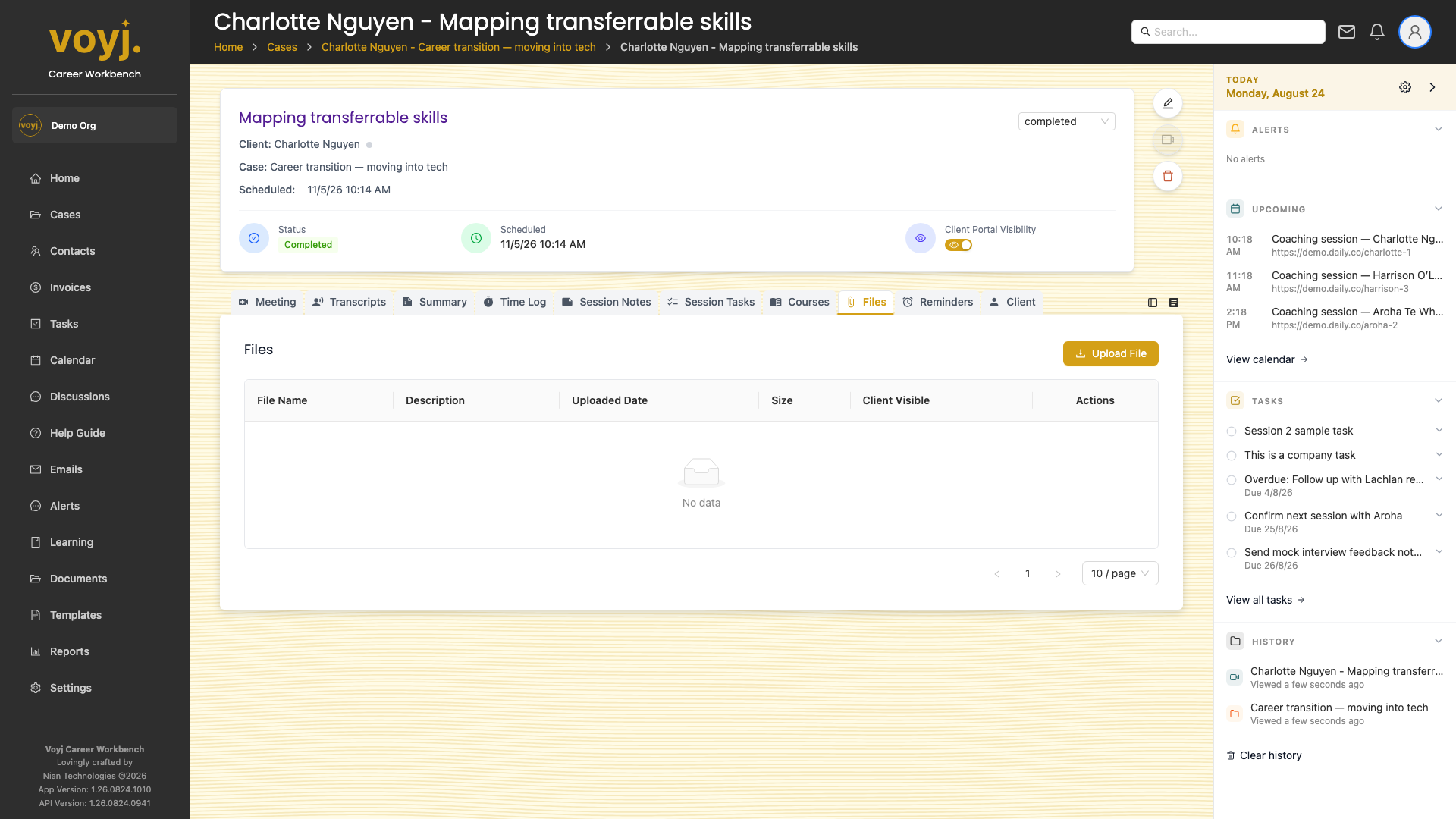
What you see on this tab
A grid of file cards. Recordings and transcripts appear here automatically once the post-session processing is complete. Manual uploads also appear.
Upload a file
- Click + Upload.
- Drag and drop files into the upload zone, or click Browse.
- Wait for the upload to complete. The file appears in the grid.
Download the recording
- Click the recording card to open the preview.
- Click the download icon to save the file to your computer.
Share with the client
- Click the three-dot menu on the file card.
- Pick Share with client. The file becomes visible in the contact's portal session view.