
Tasks
Updated 8 September 2026
Open Tasks
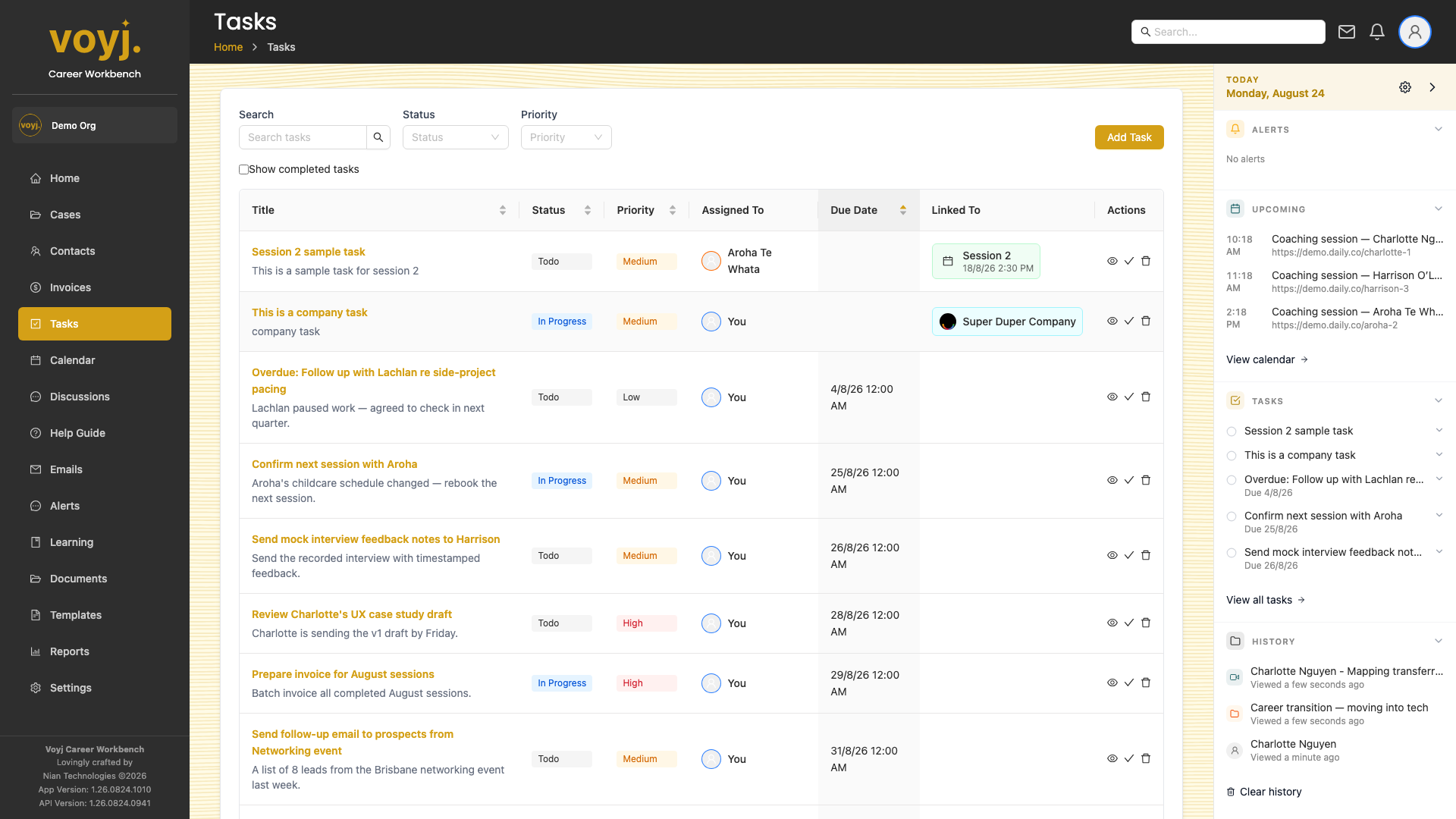
- Click Tasks in the sidebar. The list opens with status filters along the top.
- Filter to Todo to see what is outstanding, or Done to review the past week.
Create a task
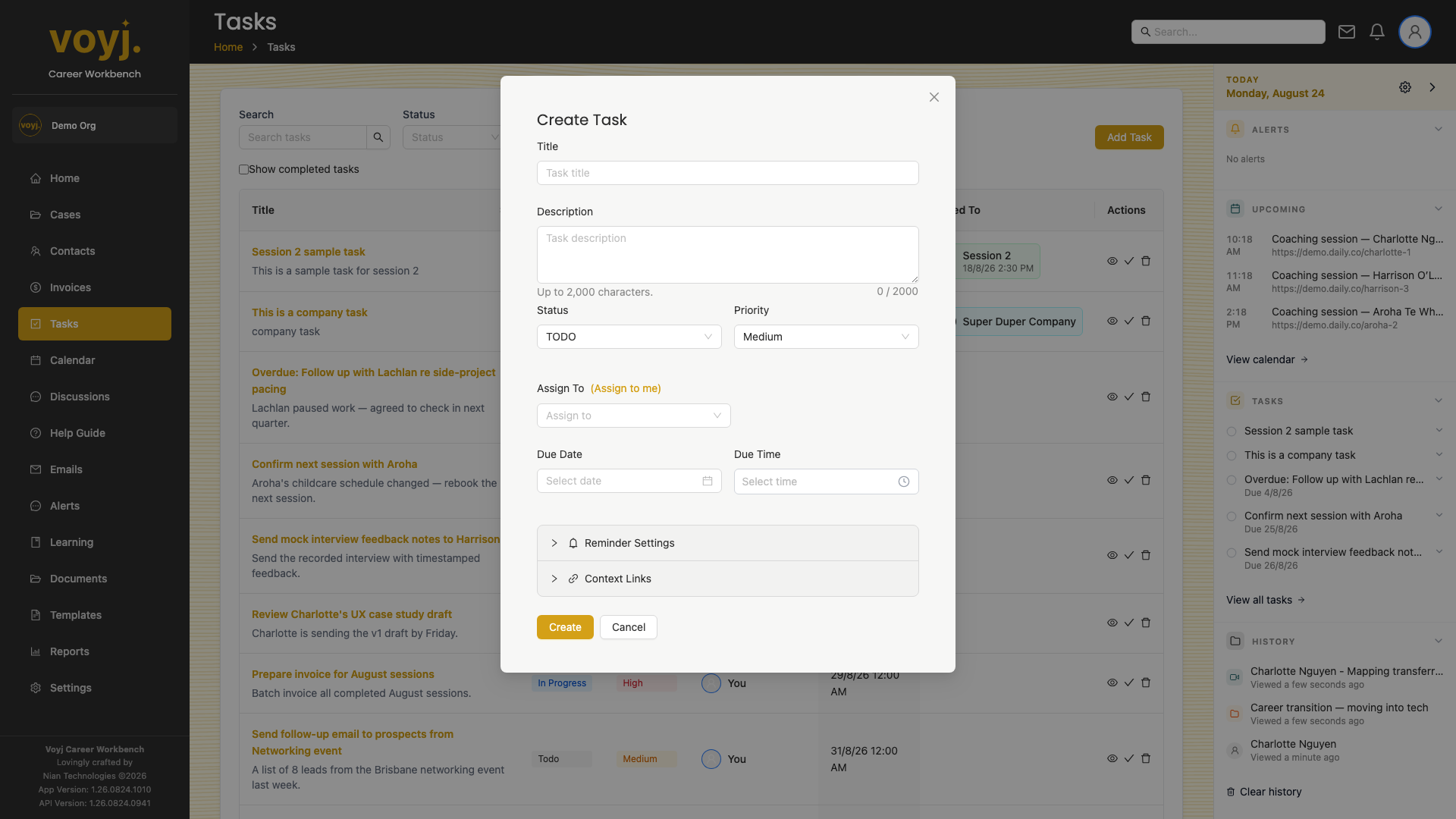
- Click + Add task at the top of the list.
- Type a title and pick a due date. Add a description if you need more context.
- Choose the assignee. Pick yourself (the coach), a contact, or leave it unassigned.
- Pick a priority: Low, Medium or High.
- Save. The task appears on the dashboard for everyone who can see it, and (if linked) on the relevant case or contact tab.
Required fields and what they mean
- Title *
- Short verb-led description of what needs to happen. Shown in lists and notifications.
- Due date
- When the task should be done by. Overdue tasks (past this date and not done) are flagged in red.
- Priority
- Low, Medium (default) or High. Priority affects the order tasks appear in on the dashboard.
- Status
- Todo (default), In progress or Done. Set the status manually or let the assignee move it as they work.
- Assigned to
- Either a coach (User) or a contact. Tasks assigned to a contact show up in the contact's portal.
- Linked record
- Optional: link the task to a case, session or contact. Linked tasks appear on the relevant record's tab.
Complete a task
- Click the empty circle next to a task title. It fills in and the task moves to Done.
- Or open the task and use Mark complete.
Edit or delete a task
- Click the task title to open it.
- Use the three-dot menu to Edit or Delete. Deleting a task is permanent — the audit history is kept for administrators but the task itself cannot be recovered.
Filter and search tasks
- Use the search box to match against title and description.
- Click a status filter chip (Todo, In progress, Done) to narrow the list.
- Click the priority dropdown to show only High tasks.
- Toggle Show completed to include done tasks in the list (off by default).