
Invoices
Updated 8 September 2026
Open Invoices
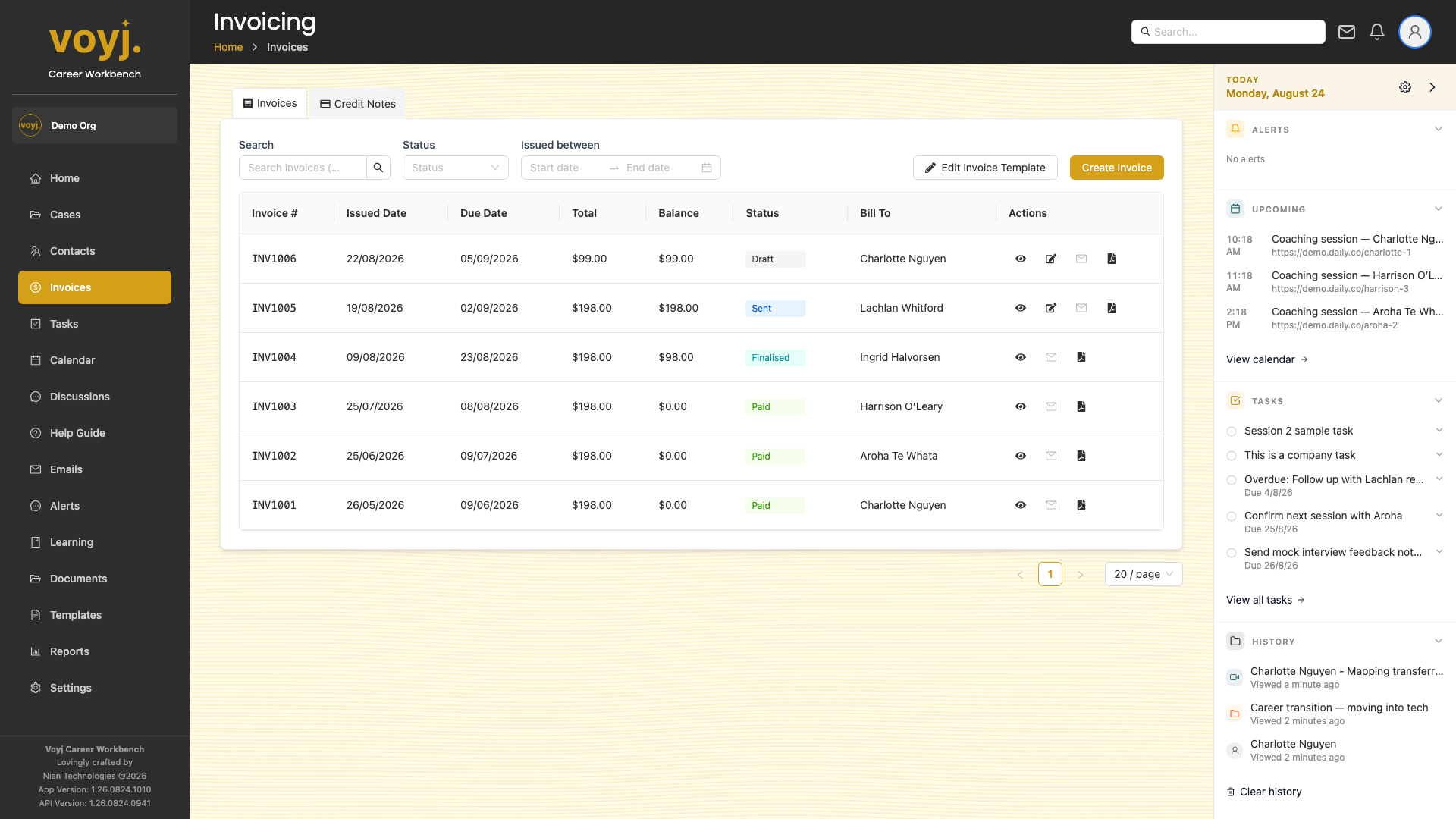
- Click Invoices in the sidebar. The list shows every invoice with status, amount and due date.
- Filter by status using the chips — draft, finalised, sent, paid, overdue.
Create a new invoice
- Click + New invoice.
- Choose the bill-to target. A contact, a company, or a case (which inherits the bill-to set on the case).
- Add line items. Pick from your services or pull completed sessions from a case. Set a quantity and rate.
- Apply tax codes. GST (10%), GST-FREE or EXEMPT — applied per line.
- Save as draft or finalise when ready. Finalised invoices get an invoice number and lock the totals.
Open an invoice
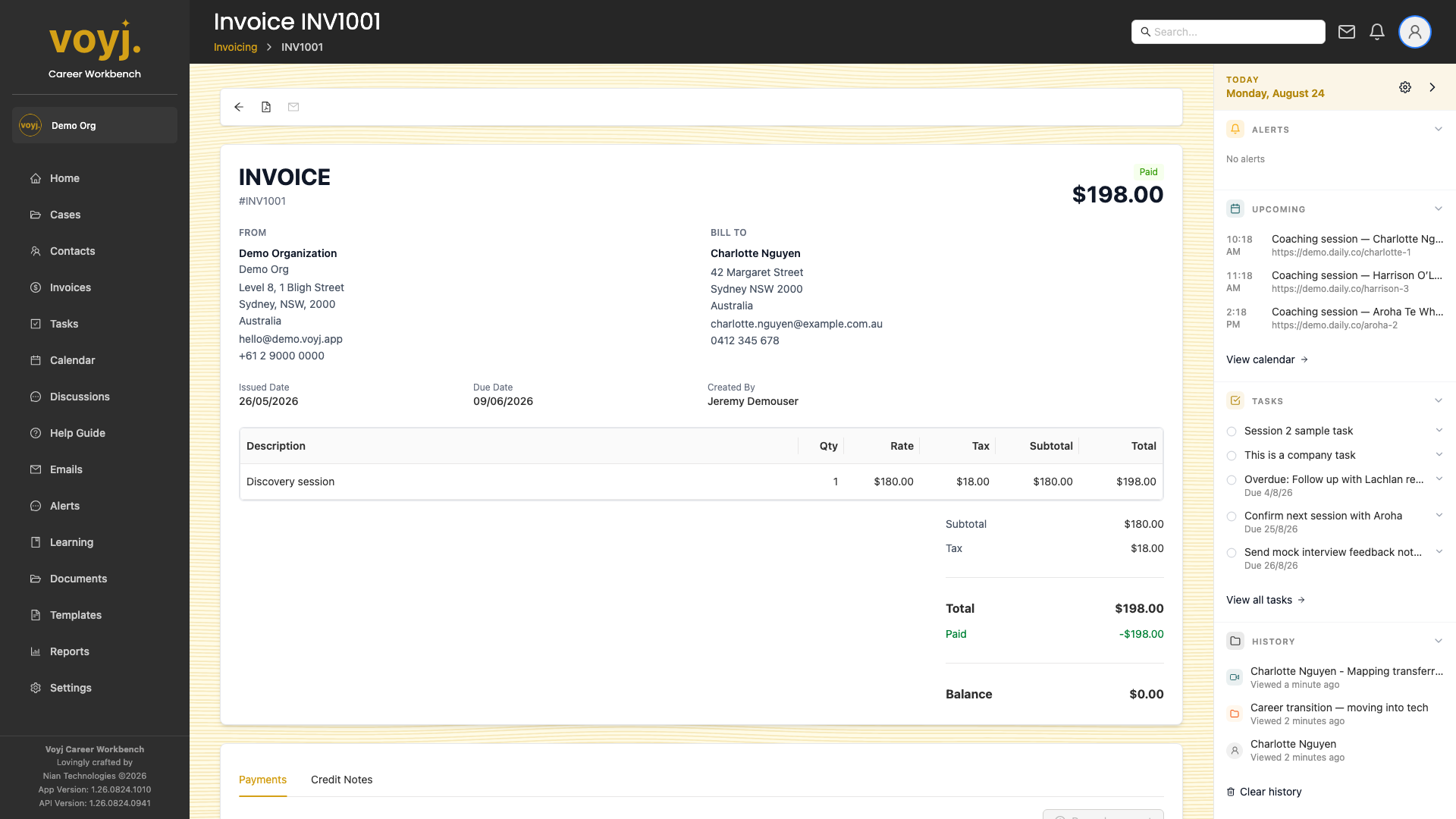
- Click an invoice number in the list. The detail page opens with all line items, payments and a preview of the PDF.
Invoice field reference
- Bill to *
- Either a contact or a company. Inherited from the case if you start the invoice from one.
- Customer reference
- Free-form text. Shown on the invoice PDF. Use it for the customer's purchase order number or internal reference.
- Issued date *
- Defaults to today. Sets the start of the payment window.
- Due date *
- Calculated from the issued date and the bill-to's default payment term. Override per invoice.
- Pricing mode
- Exclusive (default; tax added on top) or Inclusive (tax included in the rate).
- Status
- Draft (editable), Finalised (totals locked, no payment yet), Sent (emailed to the customer), Paid (fully paid), Overdue (past the due date and not paid), Refunded or Voided.
- Invoice number
- Per-organisation counter, for example VOY-2026-0042. Set automatically when the invoice is finalised.
Line item field reference
- Description *
- What the line is for. Shown on the PDF. Use a clear, customer-facing description.
- Quantity *
- Number of units. For services billed per session, this is the number of sessions.
- Rate *
- Per-unit rate in cents. Auto-populated from the service, but editable.
- Tax code
- GST (10%, taxable), GST-FREE (0%, still on the invoice but no tax), or EXEMPT (0%, exempt from GST).
- Linked session or case
- Optional: pull the line from a specific session or case to keep billing in sync.
Finalise an invoice
- Open the draft invoice.
- Click Finalise. Voyj assigns the next invoice number, locks the line items and total, and generates a PDF.
- Once finalised the invoice can no longer be edited. Use Void to cancel a finalised invoice by mistake.
Send an invoice to the customer
- Open the finalised invoice.
- Click Send. Voyj emails the PDF to the bill-to contact and marks the invoice as Sent.
- You can also download the PDF and send it manually.
Record a payment
- Open the invoice.
- Click Record payment. Choose Bank transfer for manual payments, or Card to send a Stripe payment link to the contact.
- Save. The invoice moves to Paid and the payment is recorded against it.
Issue a credit note
- Open the invoice.
- Click the three-dot menu and pick Issue credit note. Voyj creates a new credit note linked to the invoice. The credit note reduces the amount the customer owes.
Invoice detail tabs
The invoice detail page has two tabs at the bottom for tracking payments and credit notes.