Lms
Updated 8 September 2026
Open Learning
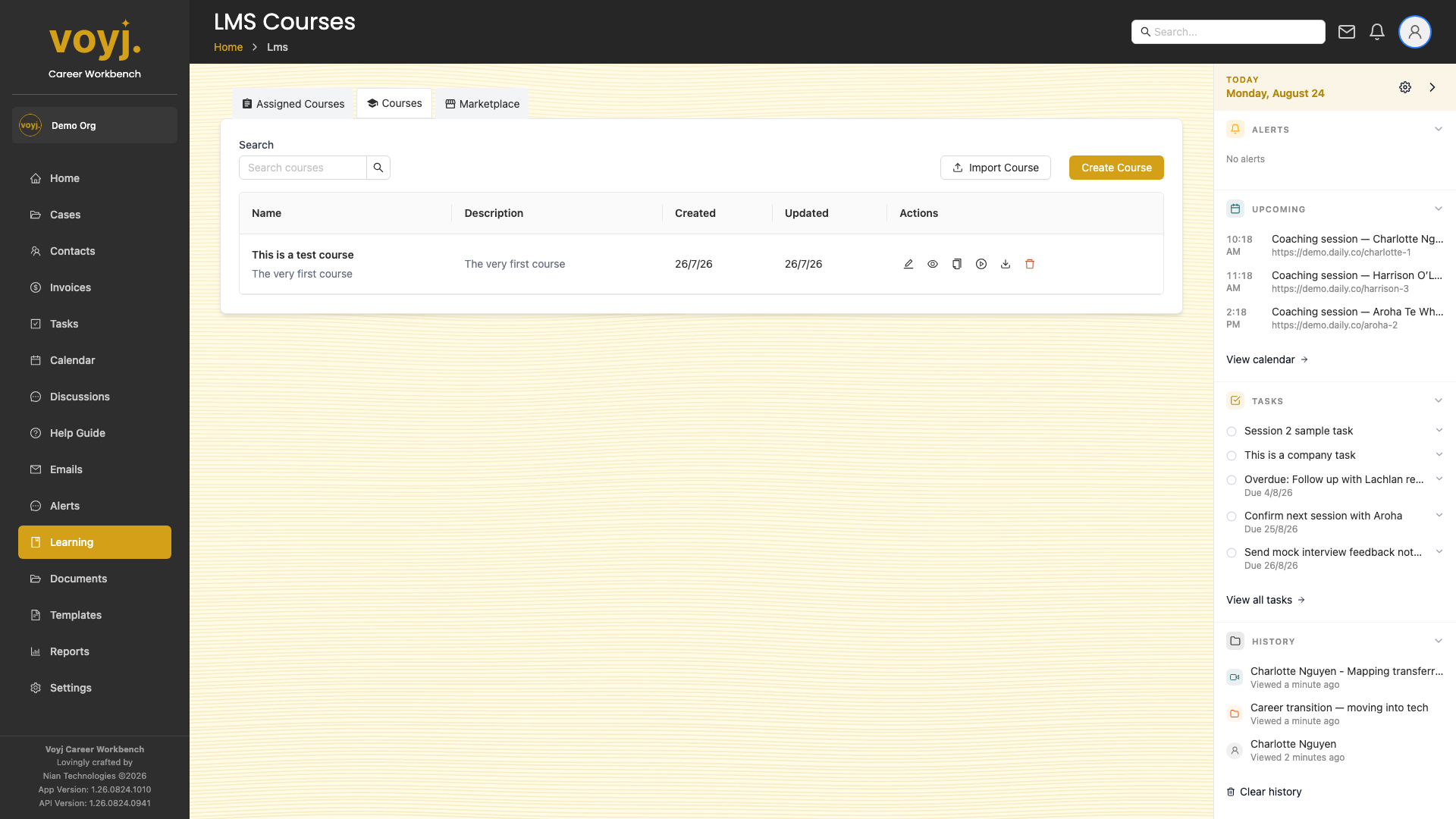
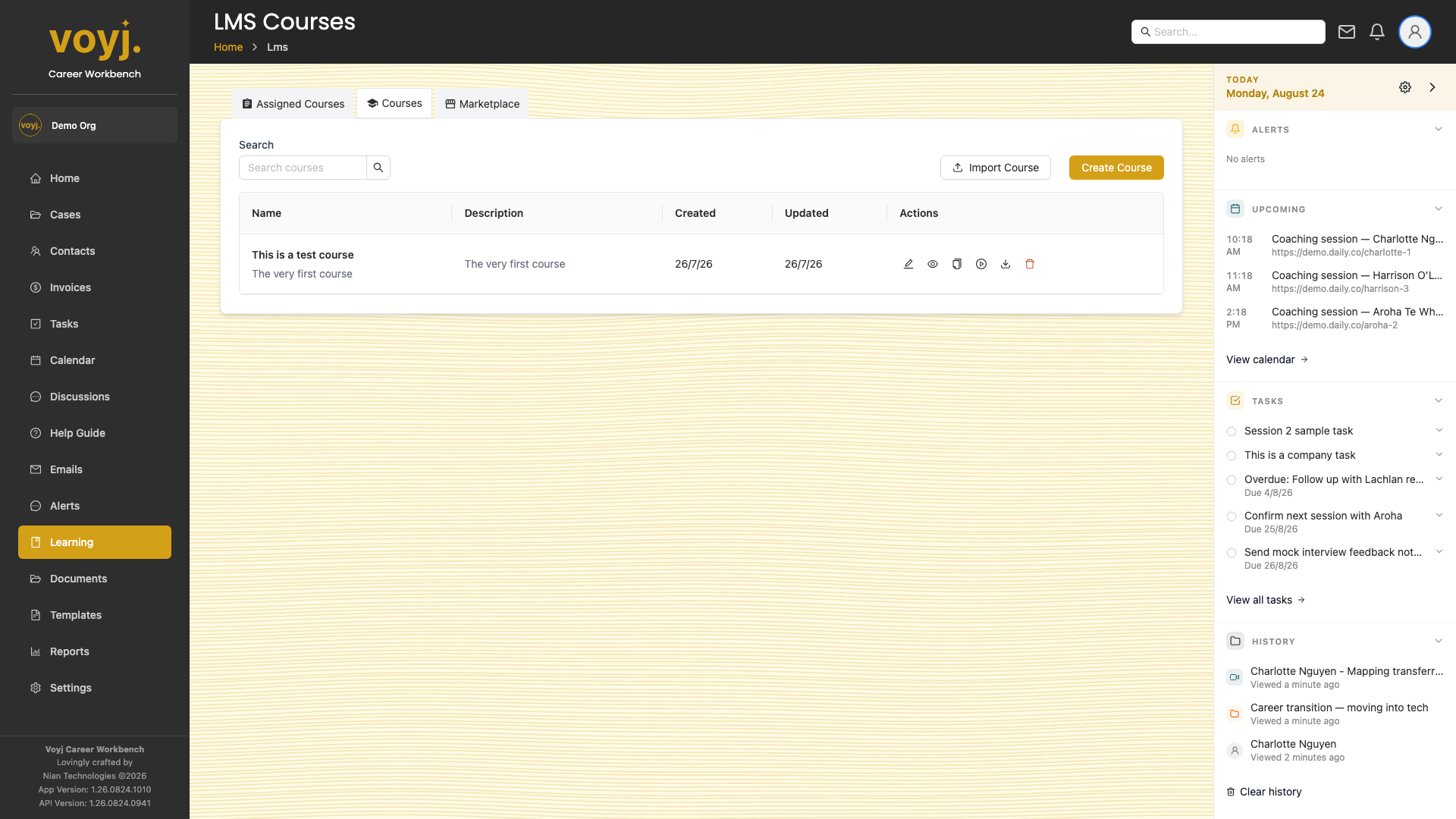
- Click Learning in the sidebar. Three tabs appear: Assigned, Courses and Marketplace.
- Switch tabs to see which courses your clients have started, the courses you can edit, and the marketplace.
Build a new course
- Click + New course. The course editor opens with five tabs: Course, Objects, Item edit, Variables and Library.
- Set the course details on the Course tab — name, description and cover image.
- Add modules from the Objects tab, then screens and components. Voyj supports text, image, video, multiple choice and Wheel-of-Life components out of the box.
- Preview the course by clicking the eye icon. Use the test player to walk through without leaving progress behind.
- Publish when ready. The course becomes assignable.
Component types
- Text
- A block of formatted text. Use it for instructions, context and explanations between activities.
- Image
- A single image with optional caption. Useful for diagrams, screenshots or visual prompts.
- Video
- Either a YouTube link or a file uploaded to the Documents library. Inline playback; no autoplay.
- Multiple choice
- One or more correct answers with optional feedback per option. Responses are saved to the Responses tab.
- Wheel of Life
- An interactive SVG ring where the contact scores each dimension (for example, Health, Career, Family) from 1 to 10. Responses are saved per dimension.
- Free text
- An open-ended prompt. The contact types a response; the response is captured for later review.
Assign a course to a client
- Open the course.
- Click Assign. Pick one or more contacts, set a due date and confirm.
- Track progress on the Assigned tab. The View responses button takes you to a coach results player for that assignment.
Review a client's responses
- Open the assignment on the Assigned tab.
- Click View responses. The coach results player shows every component response, with timestamps and the client's answers.
- Add a coach note for the response (saved to the contact's record).
Mark an assignment complete
- Open the assignment.
- Click Mark complete. The contact is notified.
Clone a course from the marketplace
- Switch to the Marketplace tab.
- Click the course you want to clone.
- Click Clone to my courses. A copy is created under your Courses tab that you can edit and assign.
Learning tabs
Every tab on the Learning page has its own dedicated page in this guide.