
Templates
Updated 8 September 2026
Open Templates
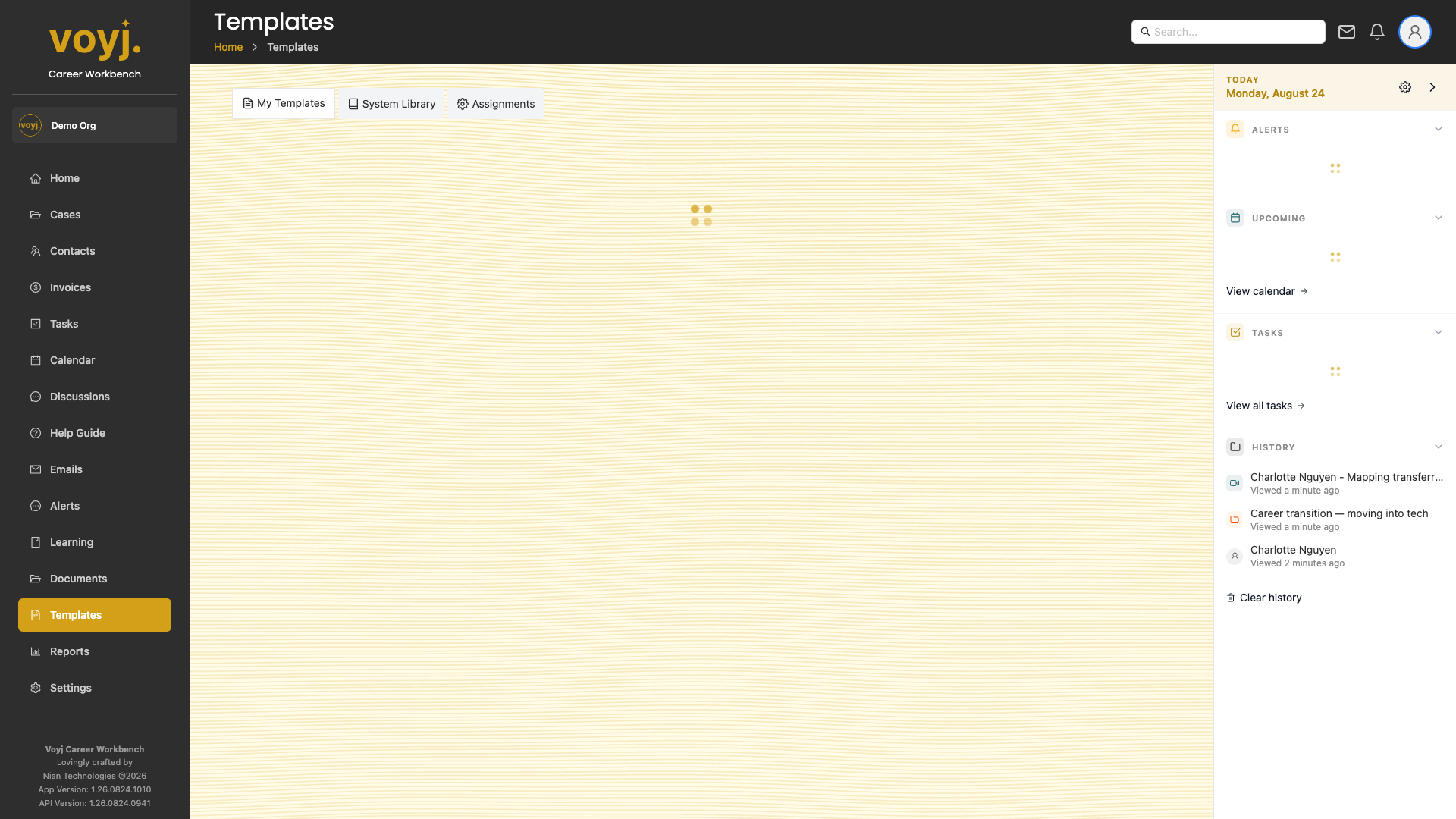
- Click Templates in the sidebar. The default view is My templates.
- Switch tabs to see the System library and Assignments.
Create a new template
- Click + New template. The full-screen editor opens.
- Name and categorise the template. Pick a category that matches where you will use it — for example, client invites or notifications.
- Write the body. Use the rich-text editor. Drop in variables from the right-hand panel — they will appear as
{{contact.first_name}}-style tokens. - Preview with mock values using the toggle in the right panel.
- Save. Publish when you are ready; drafts stay private.

Template fields
- Name *
- Internal name. Shown in the templates list and the pickers. Use a short, descriptive label.
- Category
- Where the template is grouped: User onboarding, Meetings, Client invites, Invoicing, Layouts, Tasks, Notifications, Forum notifications, Reminders, Calendar, Autoresponders.
- Type
- Email, Invoice or Cognito (for authentication messages).
- Subject
- Default subject line. Variables supported.
- Body
- Rich-text body. Variables supported. HTML in the body is sanitised on save to keep the platform safe.
- Status
- Draft (private), Published (visible to the team) or Archived.
- Variables
- Insert placeholders for contact fields, case fields or session fields. Pick from the right-hand panel.
- Attachments
- Default attachments — for example, your standard welcome pack. Voyj attaches them automatically when the template is used.
Common variables
{{contact.title}}- Honorific (Mr, Ms, Mrs, Dr).
{{contact.first_name}}- The contact's first name. Use
{{contact.preferred_name}}for the nickname if set. {{contact.last_name}}- The contact's family name.
{{contact.email}}- The contact's primary email address.
{{contact.phone}}- The contact's phone number, formatted in E.164.
{{contact.full_address}}- The contact's full mailing address, formatted as a single block.
{{case.title}}- The case title (only when the template is sent from a case context).
{{session.scheduled_at}}- Session date and time in the coach's timezone, formatted as Monday 25 August 2026 at 10:00 am AEST.
{{coach.first_name}}- Your first name — the coach sending the message.
Use a template in the email composer
- Open Compose.
- Pick the template from the message bar. Voyj replaces variables with the recipient's details.
- Adjust the body and send.
Assign a system template to a function
- Open the Assignments tab on the Templates page.
- Pick a function key — for example Client invite or Meeting reminder.
- Pick the template that should be used. Voyj uses this template for every send of that function going forward.
Clone a system template
- Switch to the System library tab.
- Click the three-dot menu on a template and pick Clone. A copy is created under My templates that you can edit.
Templates tabs
Every tab on the Templates page has its own dedicated page in this guide.