
Contacts
Updated 8 September 2026
Open the Contacts page
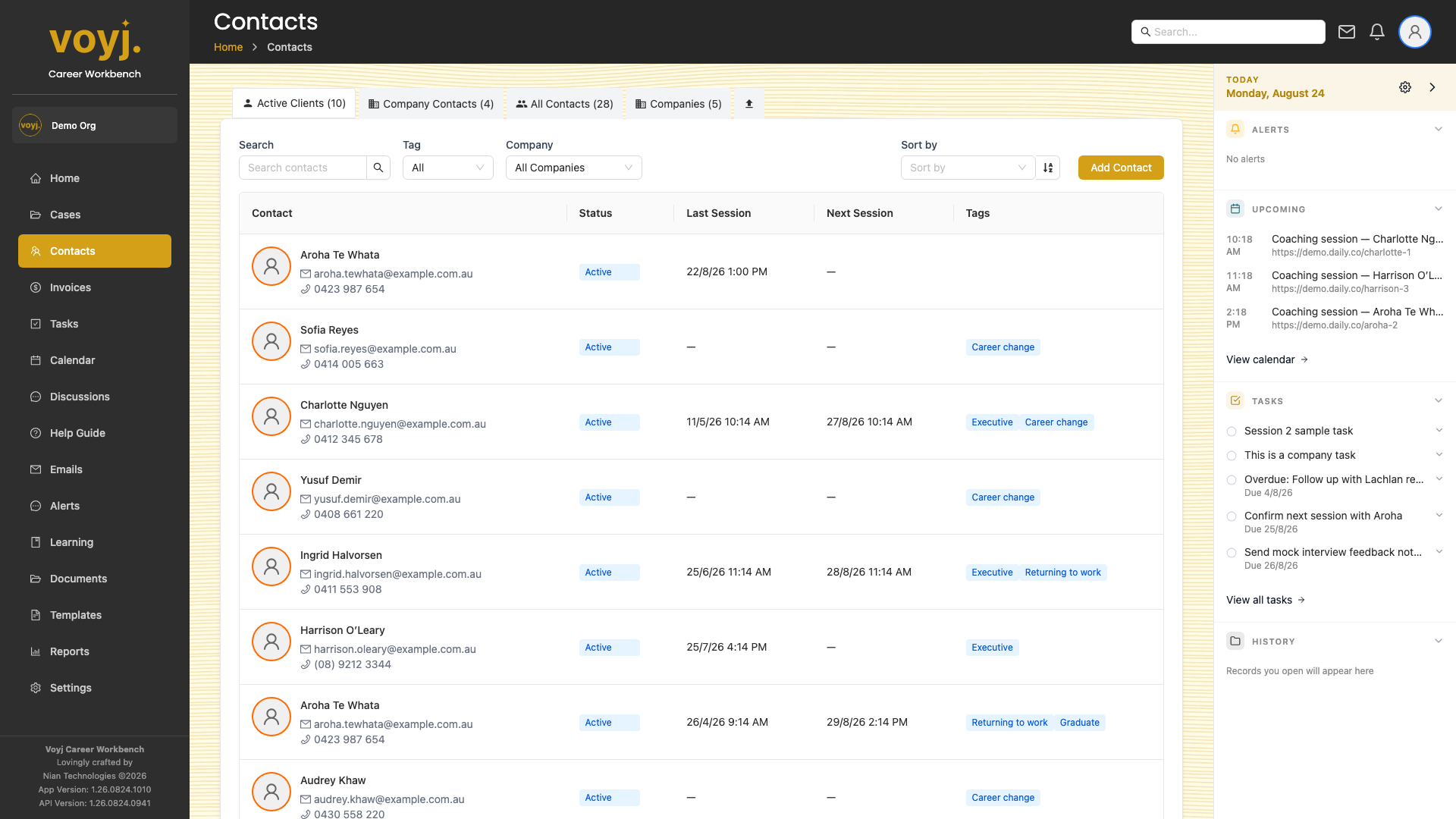
- Click Contacts in the left sidebar. The default tab shows your Clients (active coaching contacts).
- Switch tabs along the top. Use Clients, Company contacts, All, Companies or (if you are an admin) Imports to switch between views.
Filter and search
- Type in the search box. Search matches against name, email and phone number.
- Click a filter chip (such as Active or NSW) to narrow the list. Combine multiple chips to drill in further.
- Sort any column. Click a column header to sort ascending; click again to sort descending.
- Use the page-size selector at the bottom right to show more or fewer rows per page.
Add a new contact
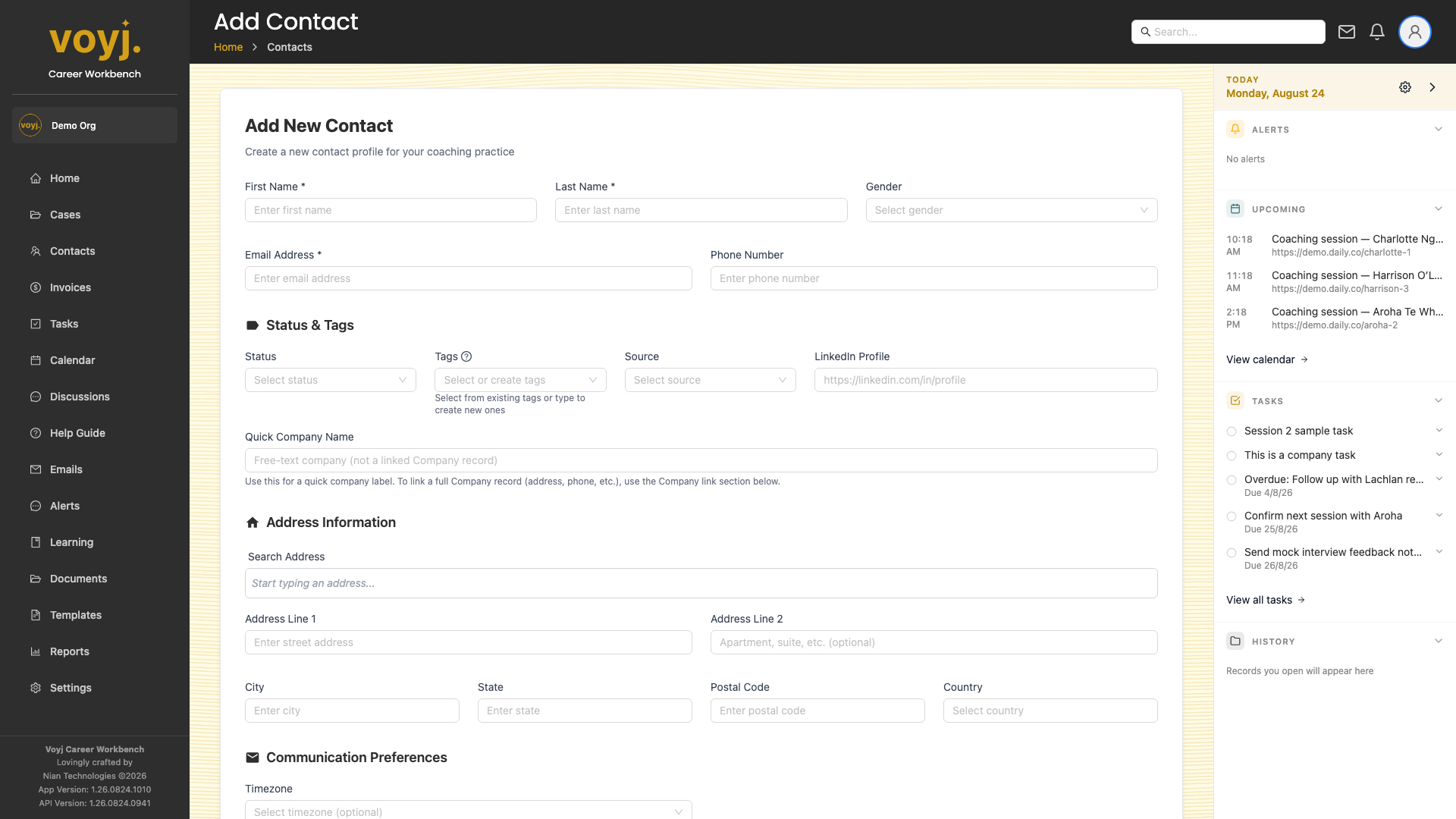
- Click + Add contact in the top right. The form opens as a wide modal so all fields are visible without scrolling.
- Fill in the basics. Title (Mr, Ms, Mrs, Dr), first and last name, email and phone. The title field is for honorifics only — it does not hold job titles.
- Pick the pipeline stage. Lead for new enquiries, Prospect for in-conversation contacts, Active for paying clients.
- Save. The contact appears in your list and the contact's detail page opens so you can add notes or start a case.
Required fields and what they mean
- Title *
- Honorific: Mr, Ms, Mrs, Dr, Prof or Mx. This appears in the salutation of letters and emails. Leave blank if unknown.
- First name *
- The contact's given name. Used in greeting lines such as
Hi {{first_name}}in templates. - Last name *
- The contact's family name. Used for sorting and search.
- Email *
- Primary email address. Voyj uses this to match incoming emails, sync the inbox and invite the contact to the client portal if needed.
- Phone
- Best daytime phone number. Use the international format with country code (for example,
+61 4xx xxx xxx) for Australian mobile numbers. - Pipeline stage
- Where the contact sits in your funnel. Lead is the default for new enquiries.
- Source
- How the contact found you — referral, LinkedIn, website enquiry, networking event, newsletter, and so on.
- Tags
- Free-form labels to filter on later. Examples: Executive, Career change, Returning to work, Small business, Graduate.
- Address
- Street, suburb, state and postcode. For Australian contacts the state uses the two-letter code (NSW, VIC, QLD, WA, SA, TAS, ACT, NT). Address fields are encrypted at rest.
- Default payment term
- Net 7, Net 14, Net 30 or Due on receipt. Used when an invoice is created against this contact unless overridden.
- Timezone
- Defaults to your organisation's timezone. Override per contact if the contact lives in a different region.
Open a contact
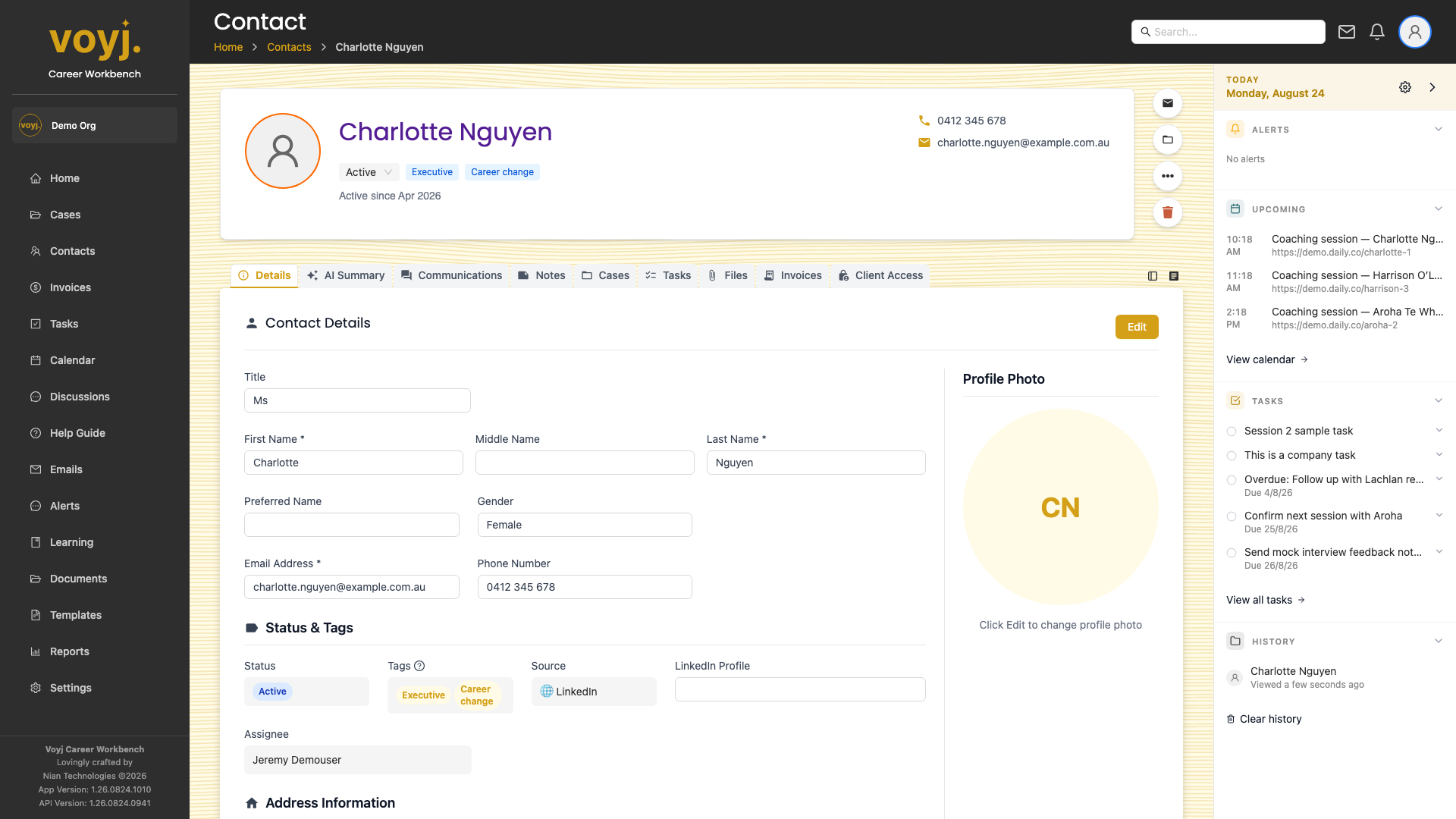
- Click a contact name. The detail page shows their details, communications, notes, cases, tasks, files and invoices in tabs along the top.
- Use the tabs. Each tab is a focused view of the records that mention this contact.
Contact detail tabs
Every tab on the contact detail page has its own dedicated page in this guide.
- DetailsFull record: name, email, phone, address, stage, tags
- AI SummaryOne-page catch-up generated from recent activity
- CommunicationsEmails, calls and texts with the contact
- NotesFree-form journal entries, optionally client-visible
- CasesEvery coaching case linked to this contact
- TasksTo-dos assigned to or touching the contact
- FilesDocuments uploaded against this contact
- InvoicesInvoices raised against this contact
- Client AccessWhether the contact can log into the client portal
Edit a contact
- Open the contact.
- Click Edit in the top-right of the page. The same wide modal opens with the contact's current values pre-filled.
- Update the fields you need to change.
- Click Save. Changes apply immediately across the app.
Delete a contact (soft delete)
- Open the contact.
- Click the three-dot menu in the top-right of the page and pick Delete.
- Confirm. The contact is moved to the Deleted stage and hidden from the default list. Admins can restore deleted contacts from the All tab.