
Settings
Updated 8 September 2026
Open Settings
- Click Settings in the sidebar. The default page is the settings overview.
- Pick a sub-page in the nested sidebar on the left.
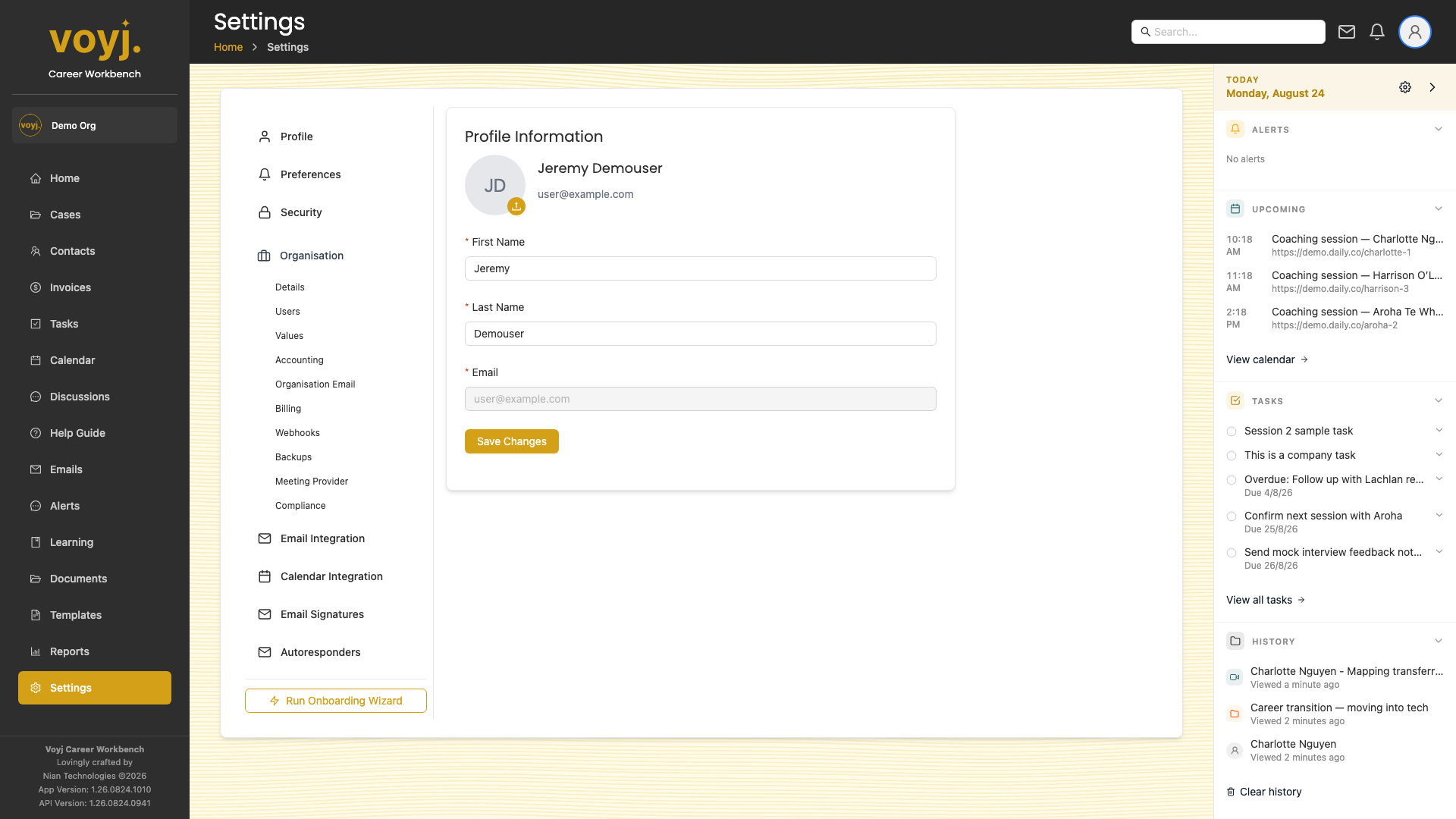
Profile
- Click Profile. Update your name, email and avatar.
- Save. Changes take effect immediately.
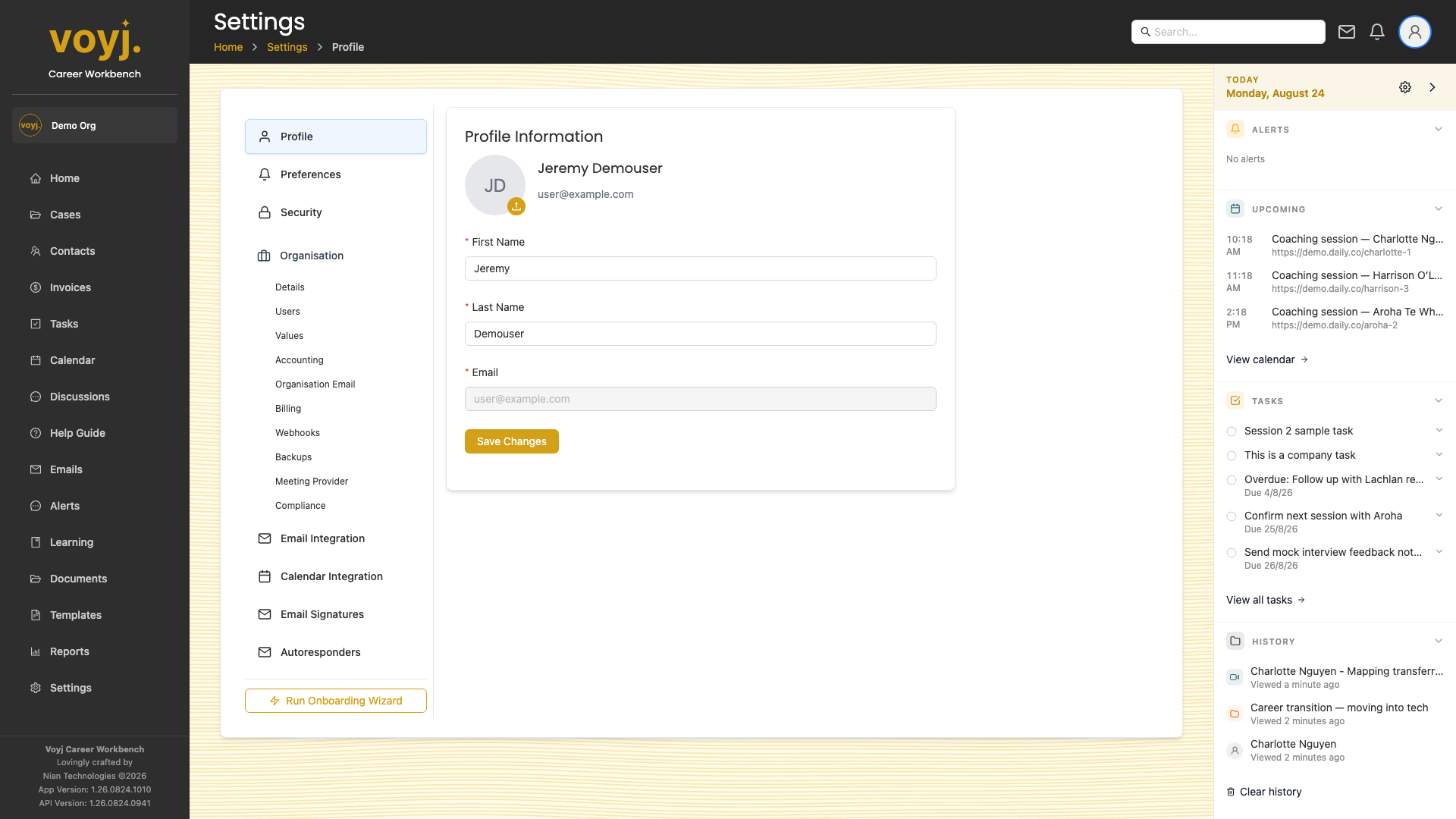
Profile field reference
- Avatar
- Square image, JPG or PNG, recommended 256×256 pixels. Appears in messages, comments and the dashboard.
- First name *
- Used in greeting lines and signatures.
- Last name *
- Used in greetings and the sidebar.
- Email *
- Primary email address. Used for sign-in, system notifications and outbound email.
- Phone
- Mobile number. Shown on your signature if you enable it.
- Timezone
- Default timezone for the coach. Override per session if needed.
Organisation
- Click Organisation. Update trading name, ABN, address, phone, default payment terms and tax jurisdiction.
- Save. The defaults flow into every new invoice.
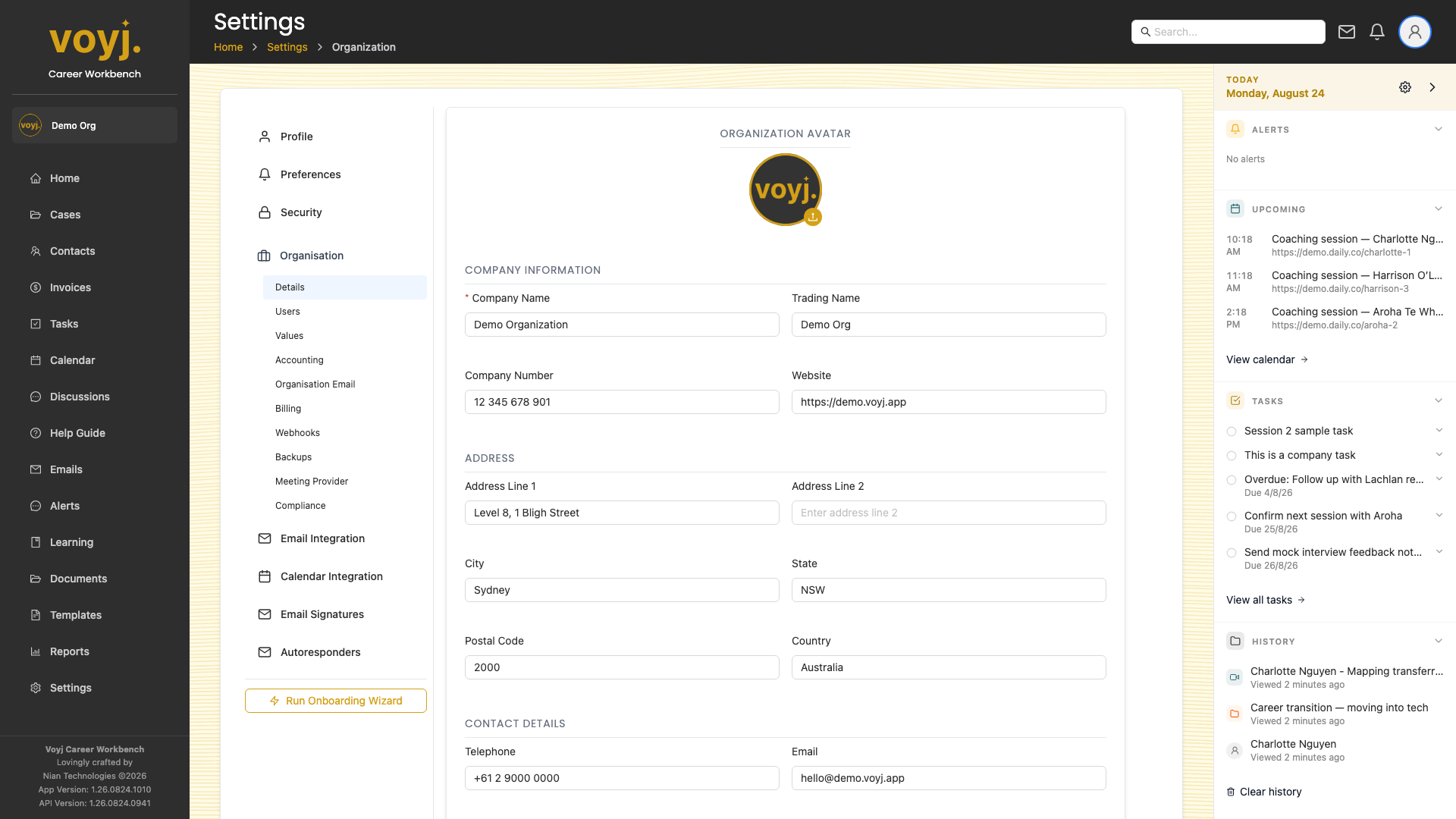
Organisation field reference
- Company name *
- Legal name. Shown on invoices and contracts.
- Trading name
- Day-to-day name. Shown in the sidebar and quotes.
- Company number
- ABN for an Australian organisation, or the equivalent overseas identifier.
- Address
- Registered address. Used as the default on invoices.
- Country *
- Sets the default tax jurisdiction. Choose Australia for AUD + GST.
- Currency
- Three-letter ISO code. AUD by default for Australian organisations.
- Tax jurisdiction
- AU, NZ, UK, EU or US. Determines the default tax codes on invoices.
- Default payment term
- Net 7, Net 14, Net 30 or Due on receipt. Inherited by every new invoice unless overridden.
- Timezone
- Default timezone for the organisation. Australian Eastern, Central or Western time are common.
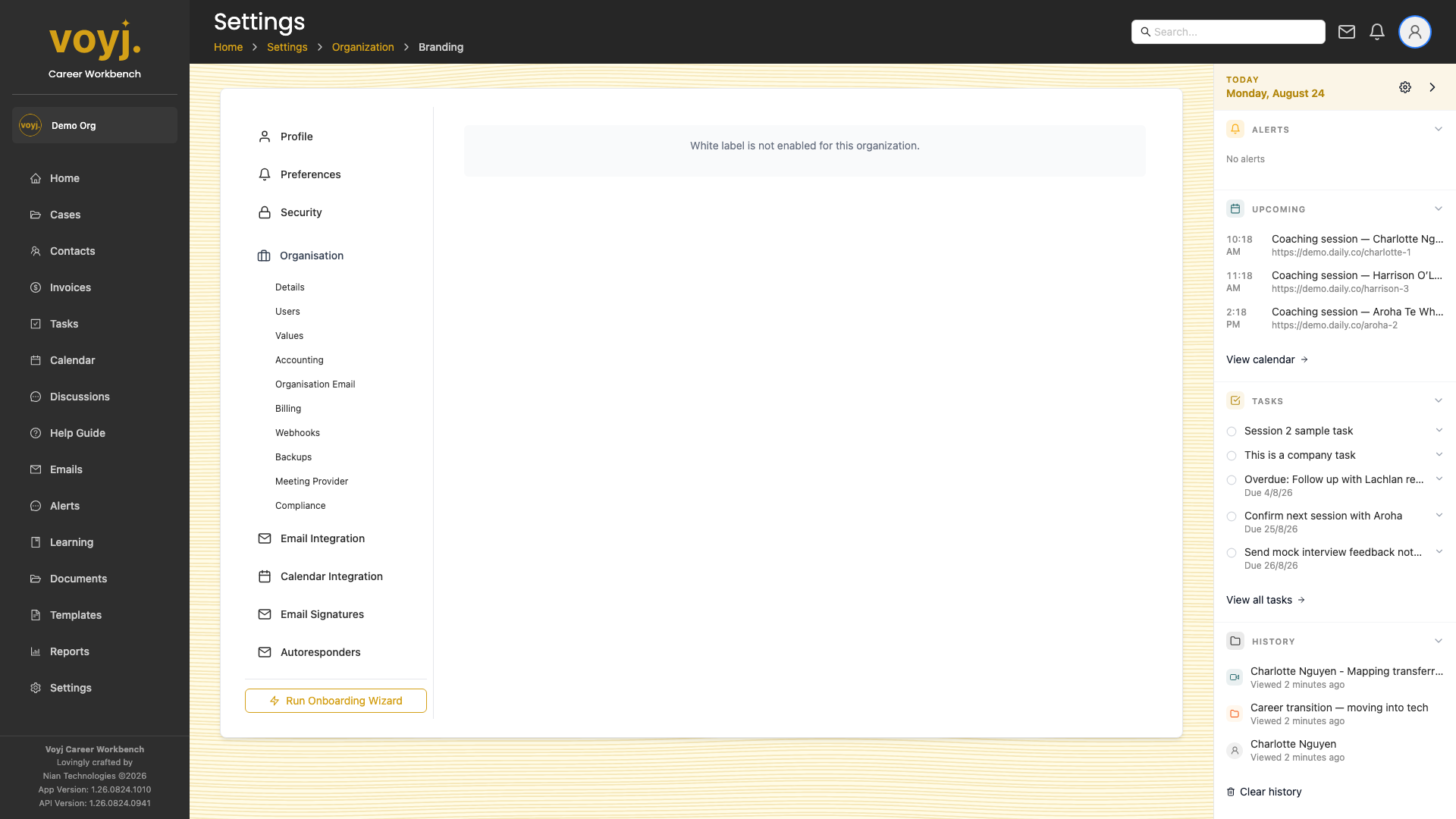
Branding
- Click Branding. Upload your primary logo, alternate logo and pick a colour theme.
- Preview the theme at the top of the page before saving.
Accounting
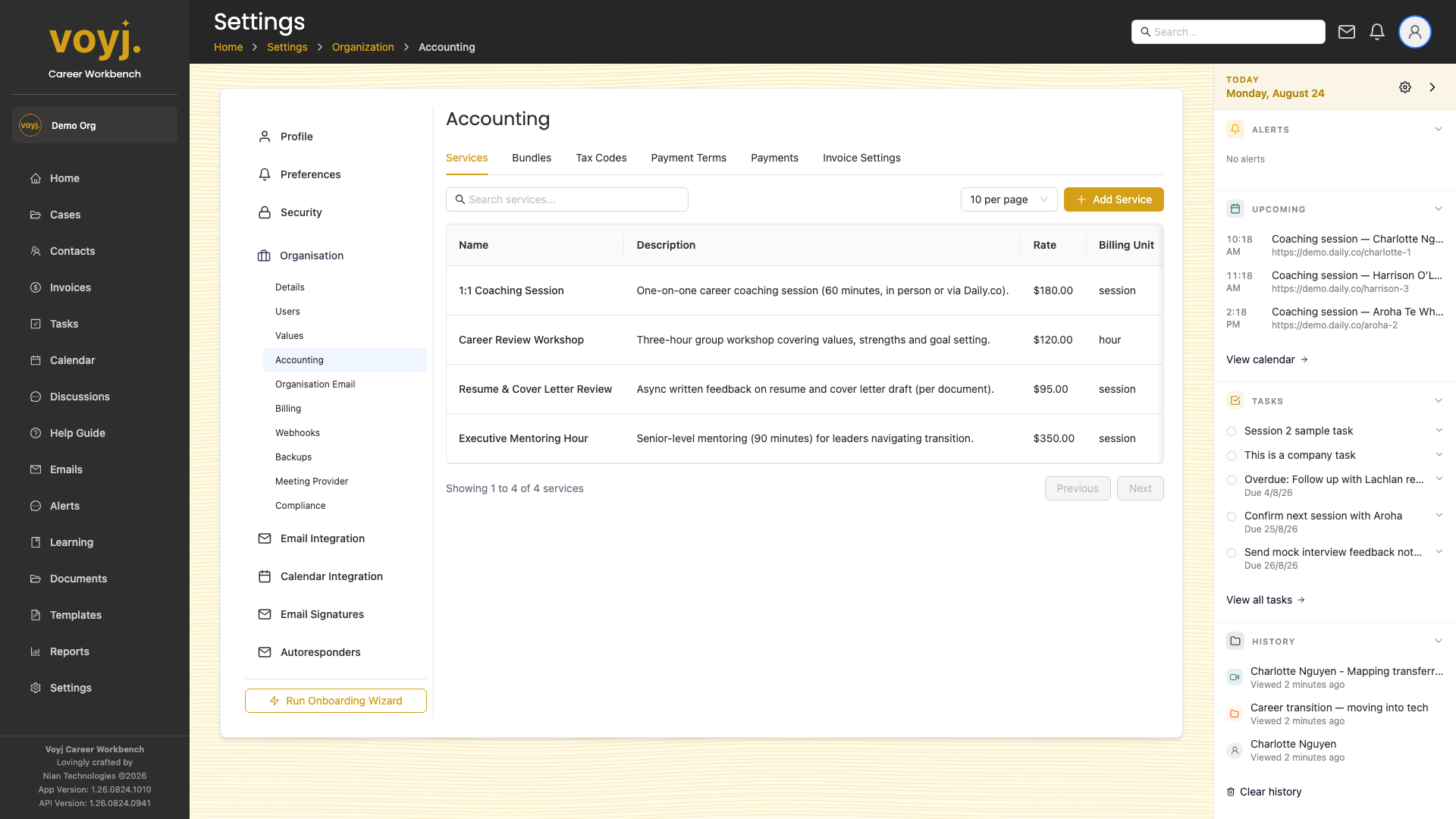
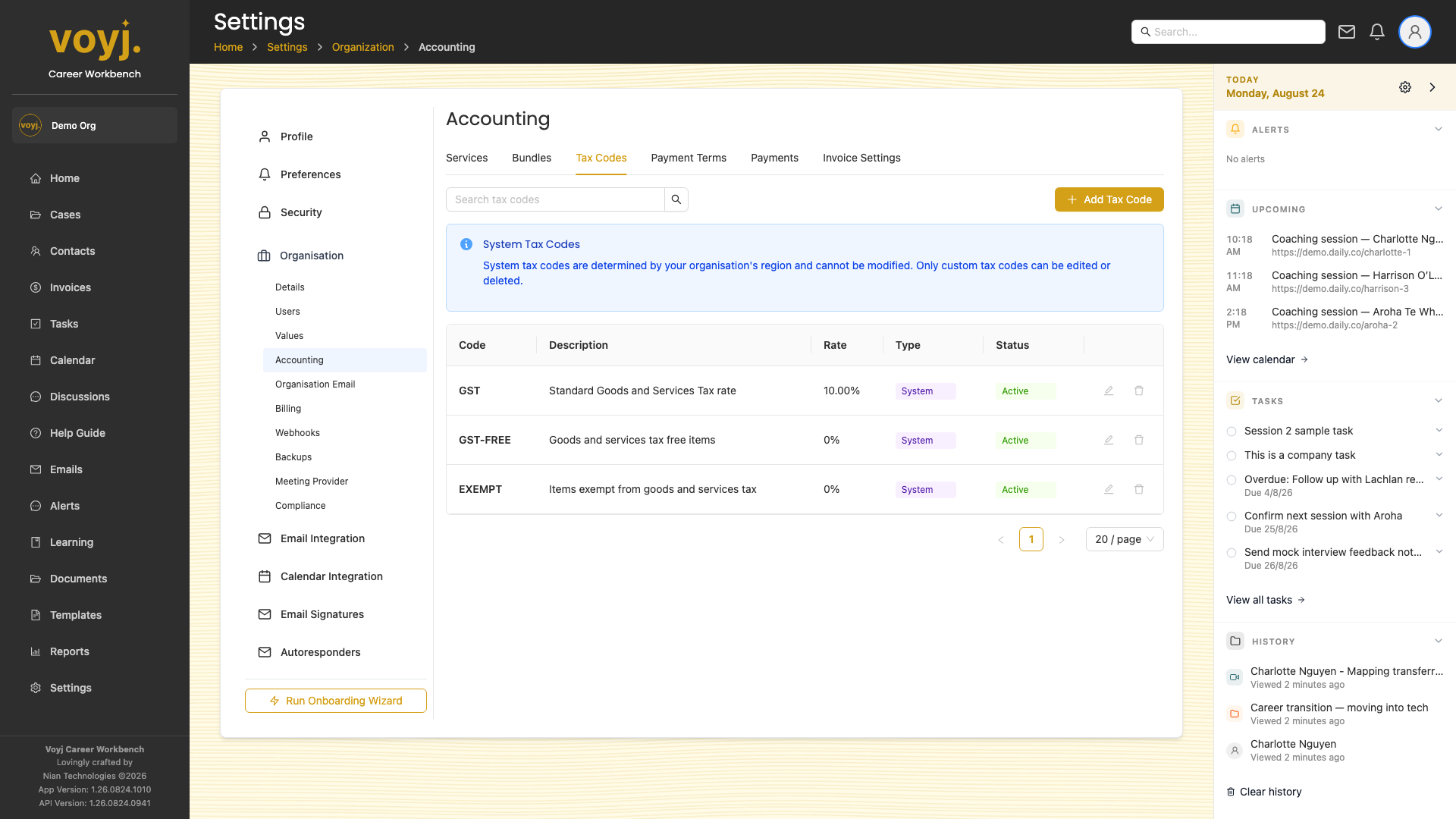
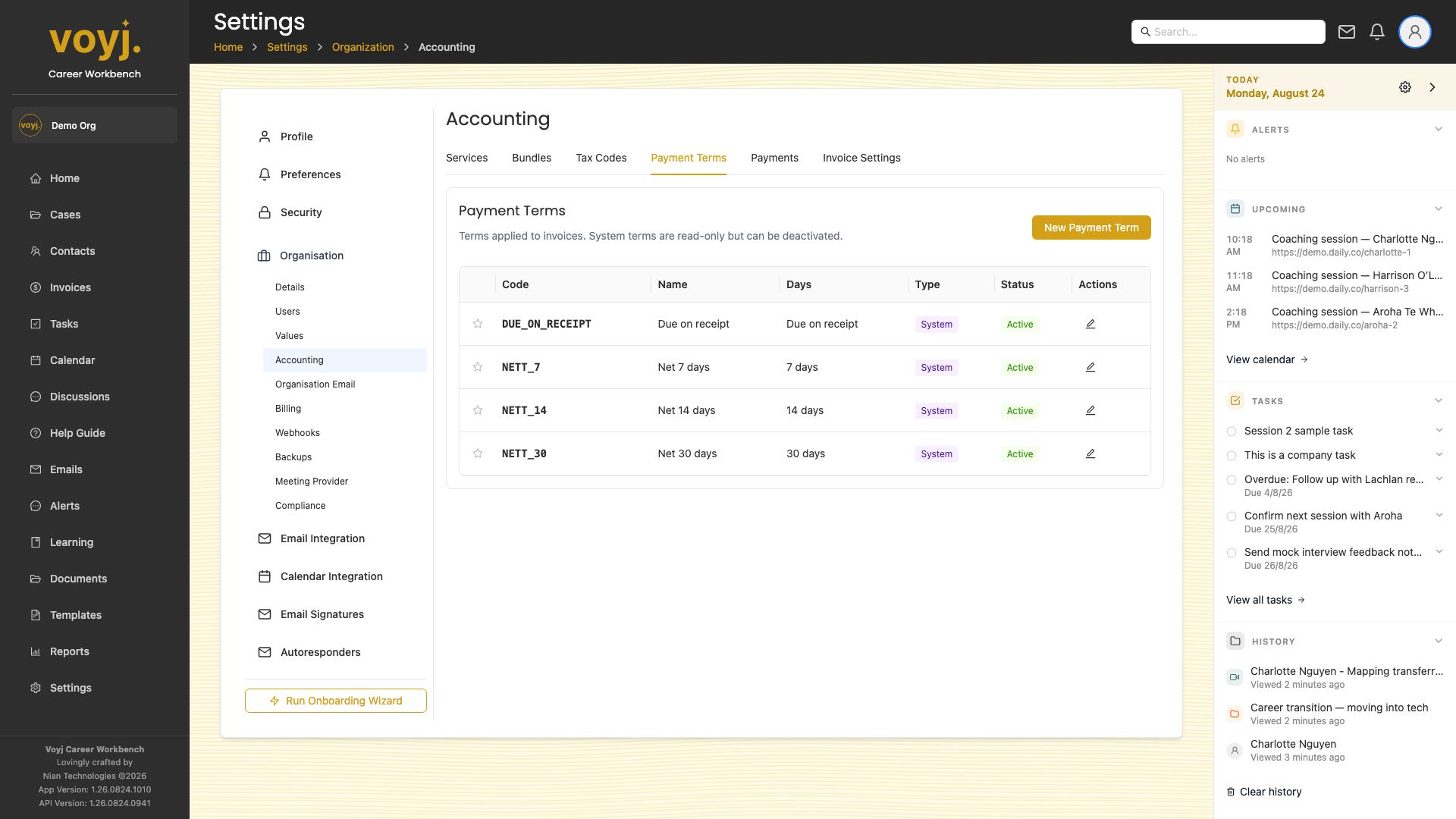
- Click Accounting. Six tabs: Services, Bundles, Tax codes, Payment terms, Payments and Invoice settings.
- Manage each tab by adding, editing or archiving items. The defaults are already seeded.
Service field reference
- Name *
- What the service is. Shown on invoices and the case wizard.
- Description
- Free-form description. Shown on quotes and the case wizard.
- Rate (cents) *
- Default rate per unit. Cents, not dollars — 18000 for $180.
- Billing unit
- Session (default) or Hour. Sessions are typically 60 minutes; hours are useful for blocks of work.
- Tax code
- Default tax code on this service's line items.
- Active
- Off to retire the service. Retired services still appear on historical invoices but are hidden from the case wizard and the invoice composer.
Bundle field reference
- Name *
- Bundle name. Shown on the case wizard and the invoice composer.
- Services
- List of services in the bundle, with quantities. A 6-session coaching package might list 1:1 Coaching Session with a quantity of 6.
- Rate (cents)
- Bundle rate. Optional — leave blank to inherit from the line items.
- Session count
- Total number of sessions the bundle covers. Used by the bundle-allocation UI.
Email integration
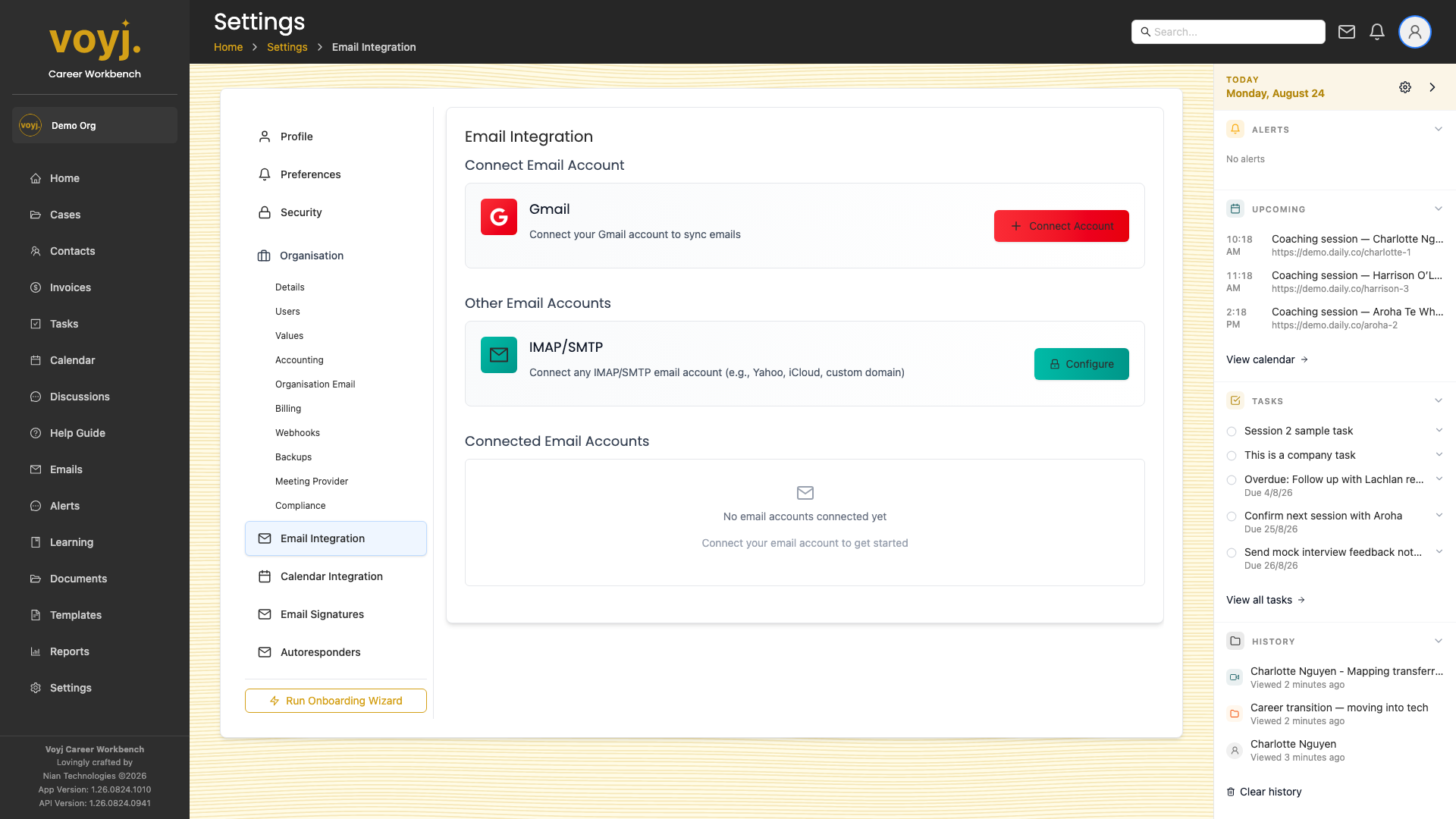
- Click Email integration. Connect Gmail, Outlook or IMAP.
- Toggle sync options. Choose what to sync and how often.
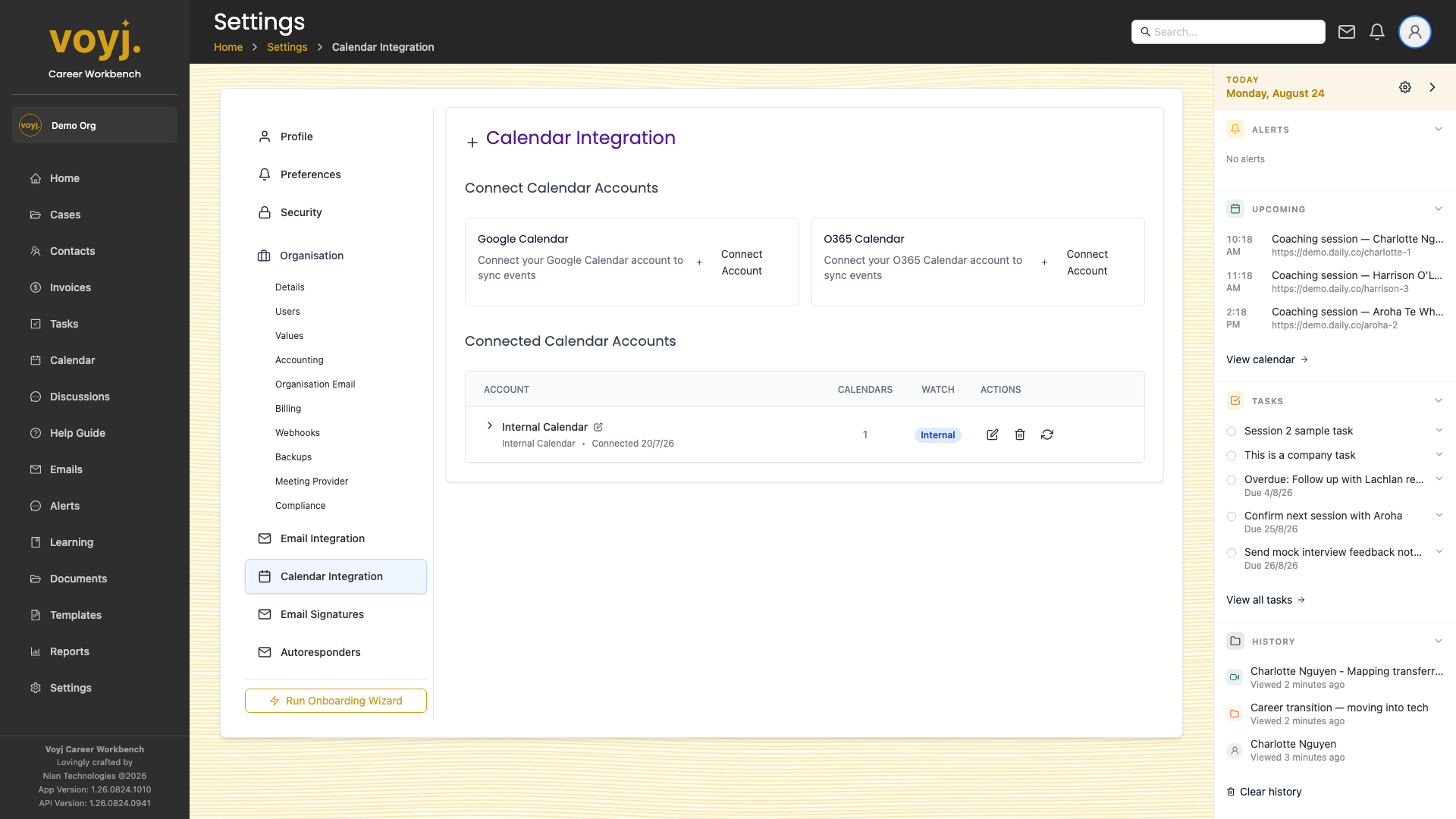
Calendar integration
- Click Calendar integration. Connect Google Calendar, Outlook or Office 365.
- Pick the calendars you want to sync and the timezone.
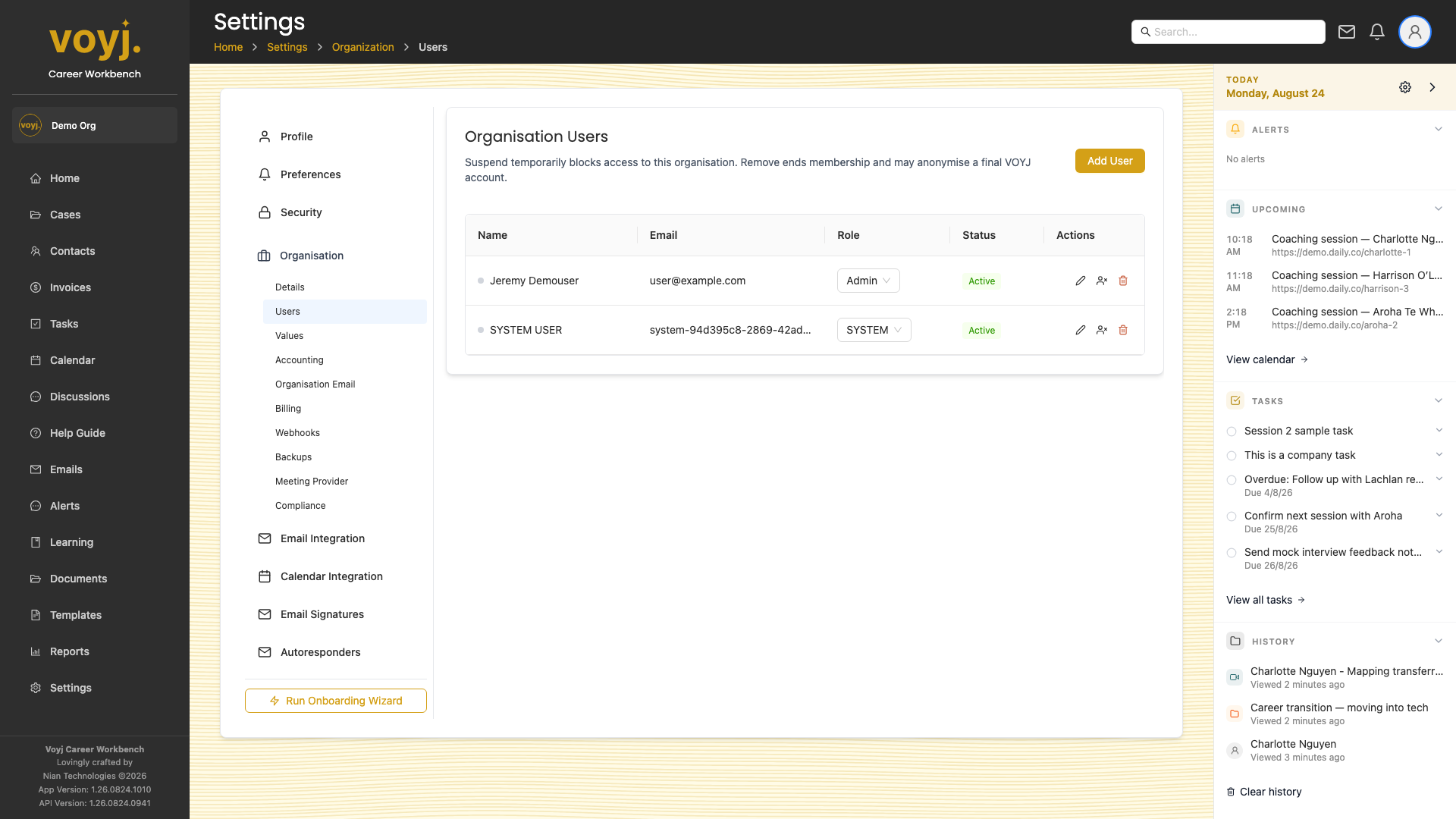
Organisation users
- Click Organisation users. See every coach on your team, their role and status.
- Invite a new user with + Invite. Pick their role (Admin, Supervisor or Coach) before sending the invitation.
Role reference
- Admin
- Full access. Manages billing, integrations and the user list. Can also do everything a supervisor or coach can do.
- Supervisor
- Read-only access to every contact, case and invoice. Can manage the user list and reassign records. Cannot update other users' cases.
- Coach
- Owns a portfolio of contacts and cases. Can see and edit only the records they own (plus shared records).
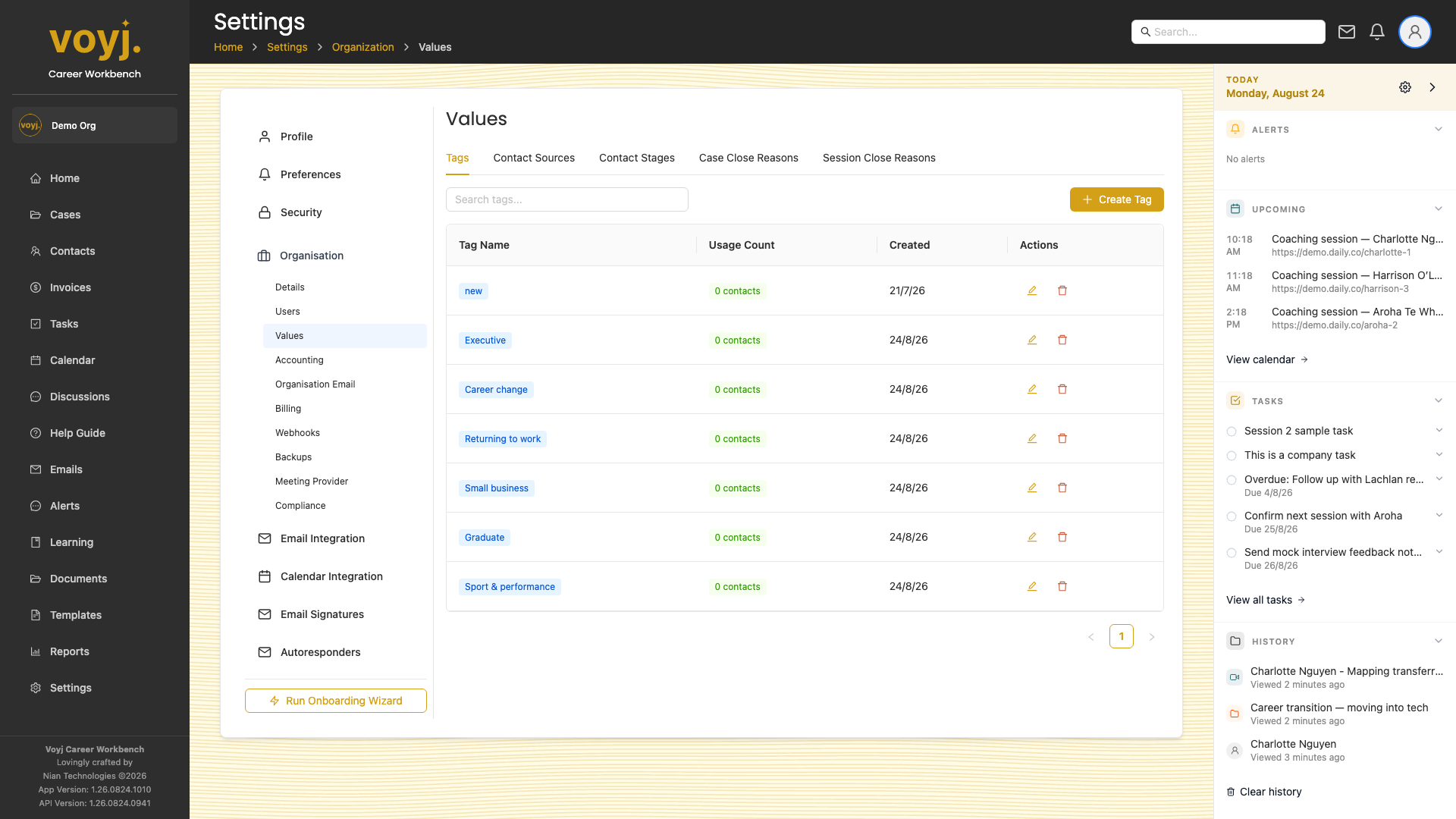
Values
- Click Values. Five sub-tabs: Tags, Contact sources, Contact stages, Case close reasons, Session close reasons.
- Add or edit items to match how your team classifies work.
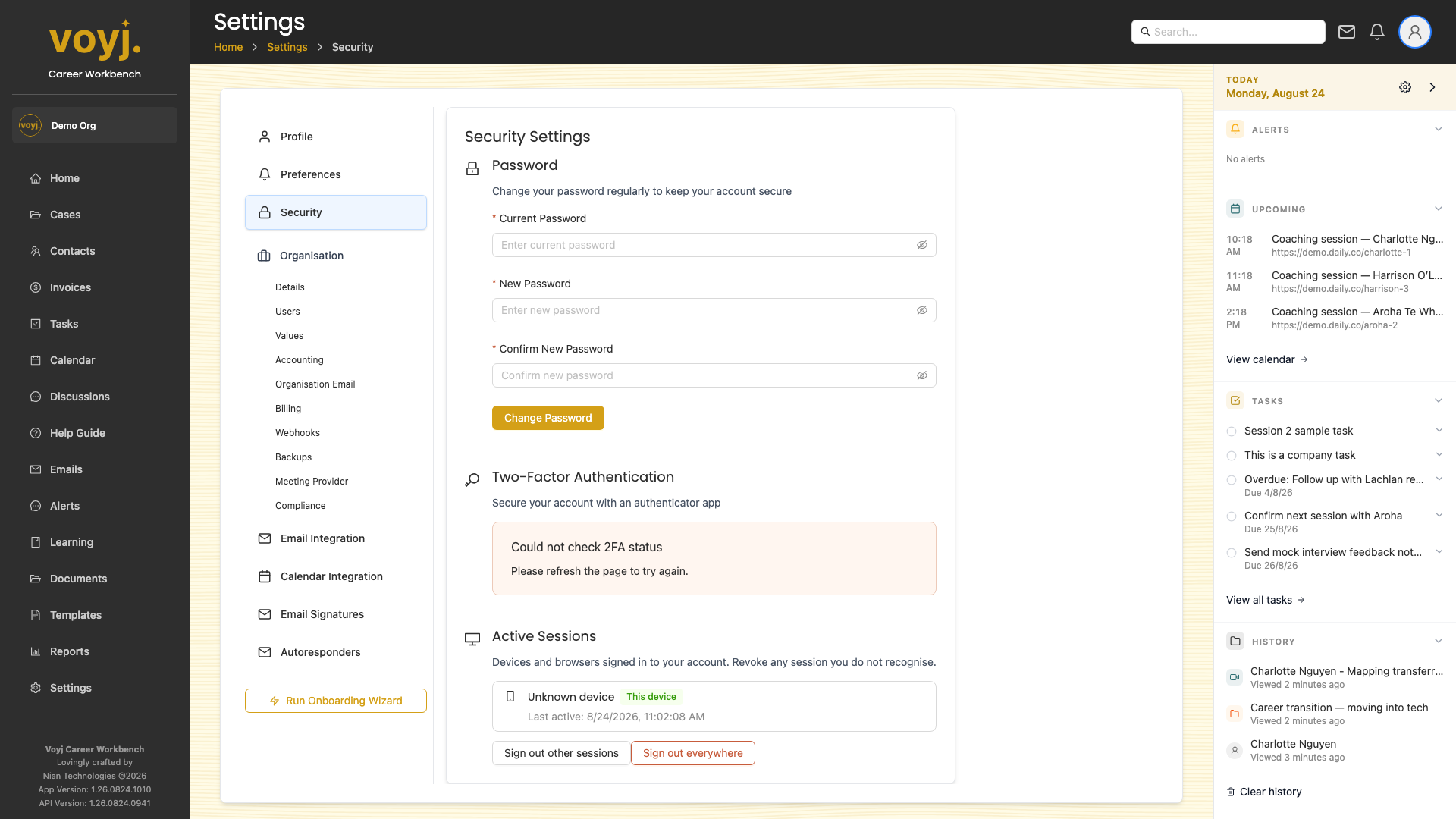
Security
- Click Security. Change your password, enable MFA, view active sessions.
Security field reference
- Current password *
- Required when changing your password.
- New password *
- At least 12 characters. Mix upper, lower, number and symbol for a strong score.
- Two-factor authentication
- Toggle on to enable TOTP. Scan the QR code with an authenticator app (1Password, Authy, Google Authenticator).
- Active sessions
- List of every browser and device that is signed in to your account. Click Sign out on a row to end that session.
Preferences
- Click Preferences. Two tabs: User and Organisation.
- Set defaults like the dashboard refresh interval, the language and the time format.
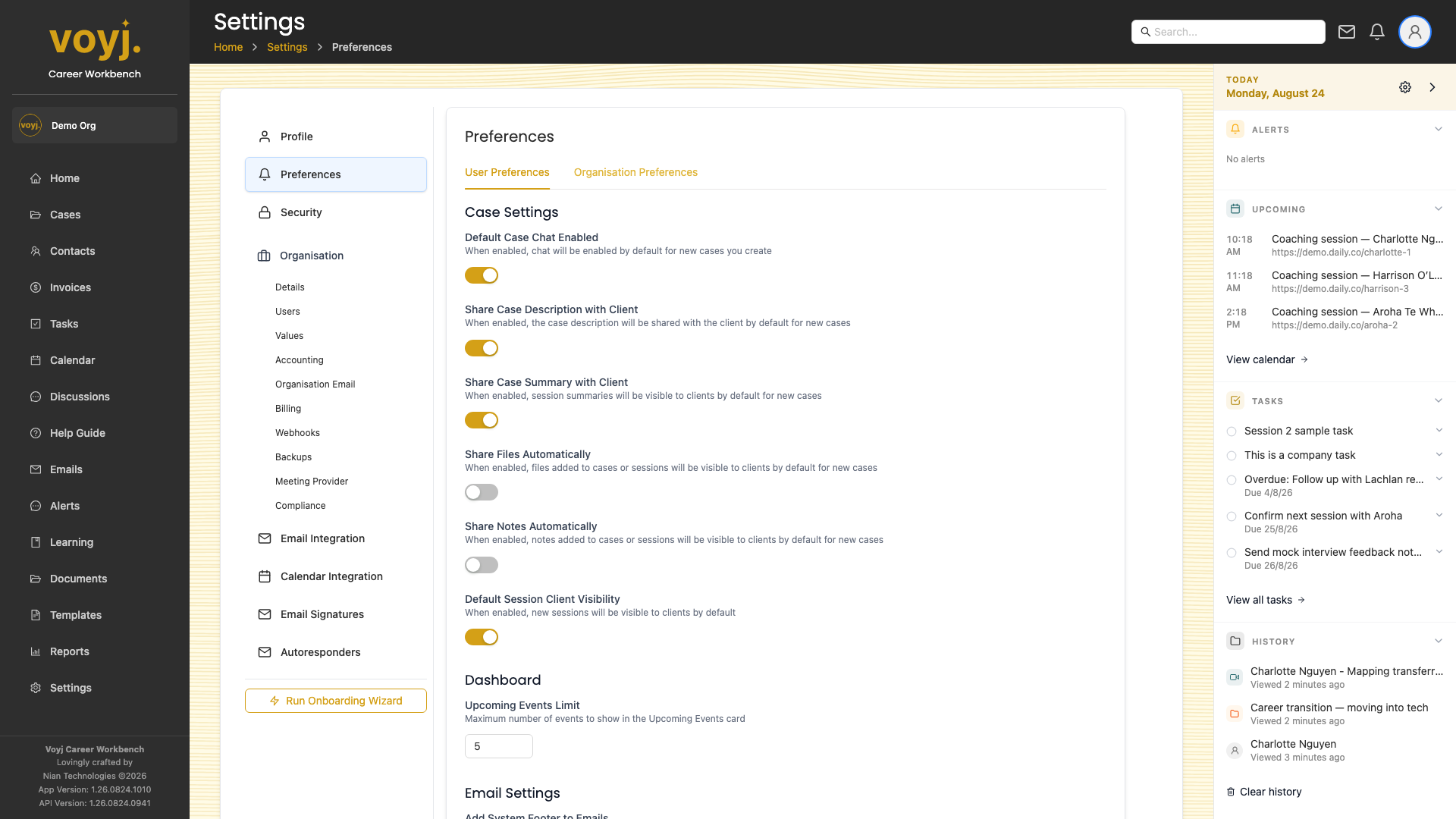
Settings sub-sections
Every section in the Settings sidebar has its own page in this guide, with the screenshot and a field reference where the section includes a form.
- ProfileYour name, email and avatar
- PreferencesNotifications, locale and default page
- SecurityPassword, MFA and active sessions
- Organisation — DetailsCountry, currency and locale
- Organisation — UsersAdd and manage coaches and admins
- Organisation — ValuesPick-lists used across the app
- Organisation — AccountingTax codes and accounting integrations
- Organisation — EmailSending domain and DNS records
- Organisation — BillingYour VOYJ subscription
- Organisation — WebhooksOutbound webhooks to your systems
- Organisation — BackupsBackup schedule and destination
- Organisation — Meeting ProviderDaily.co, Zoom or Google Meet
- Organisation — CompliancePrivacy, retention and audit log
- Email IntegrationConnect Gmail or Microsoft 365
- Calendar IntegrationTwo-way calendar sync
- Email SignaturesOne or more signatures with a default
- AutorespondersNew-lead and out-of-office replies