
Sessions
Updated 8 September 2026
Open a session
- Click Cases › pick a case › Sessions tab. Or use the global search and search by session name.
- Click any session row. The detail page shows the meeting area, summary, notes, tasks and files.
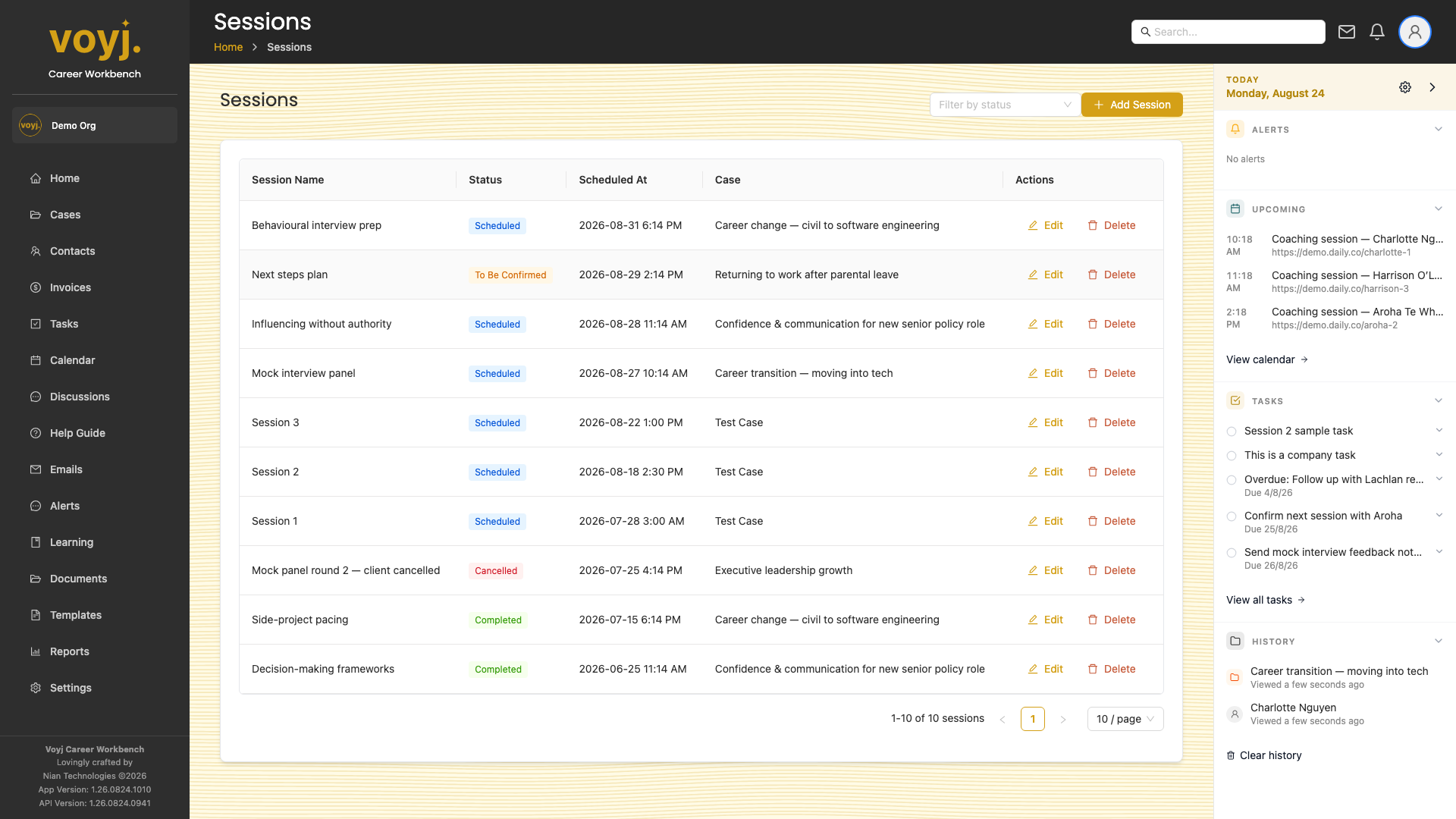
Session statuses
- Scheduled
- The session is on the calendar and confirmed. It has a start and end time and (if online) a meeting URL.
- To be confirmed
- Drafted but not yet confirmed with the client. Use this while negotiating a time.
- In progress
- The coach has clicked Start and the meeting timer is running.
- Completed
- The session has ended. Coach and client summaries have been written.
- Cancelled
- The session will not run. A close reason is recorded.
The session detail page
The session detail page shows the meeting area at the top and a strip of tabs underneath. The meeting area changes depending on the session state:
- Scheduled: meeting details, join link, start button.
- In progress: live timer, end button, participant list.
- Completed: recording link, transcript, coach and client summaries.
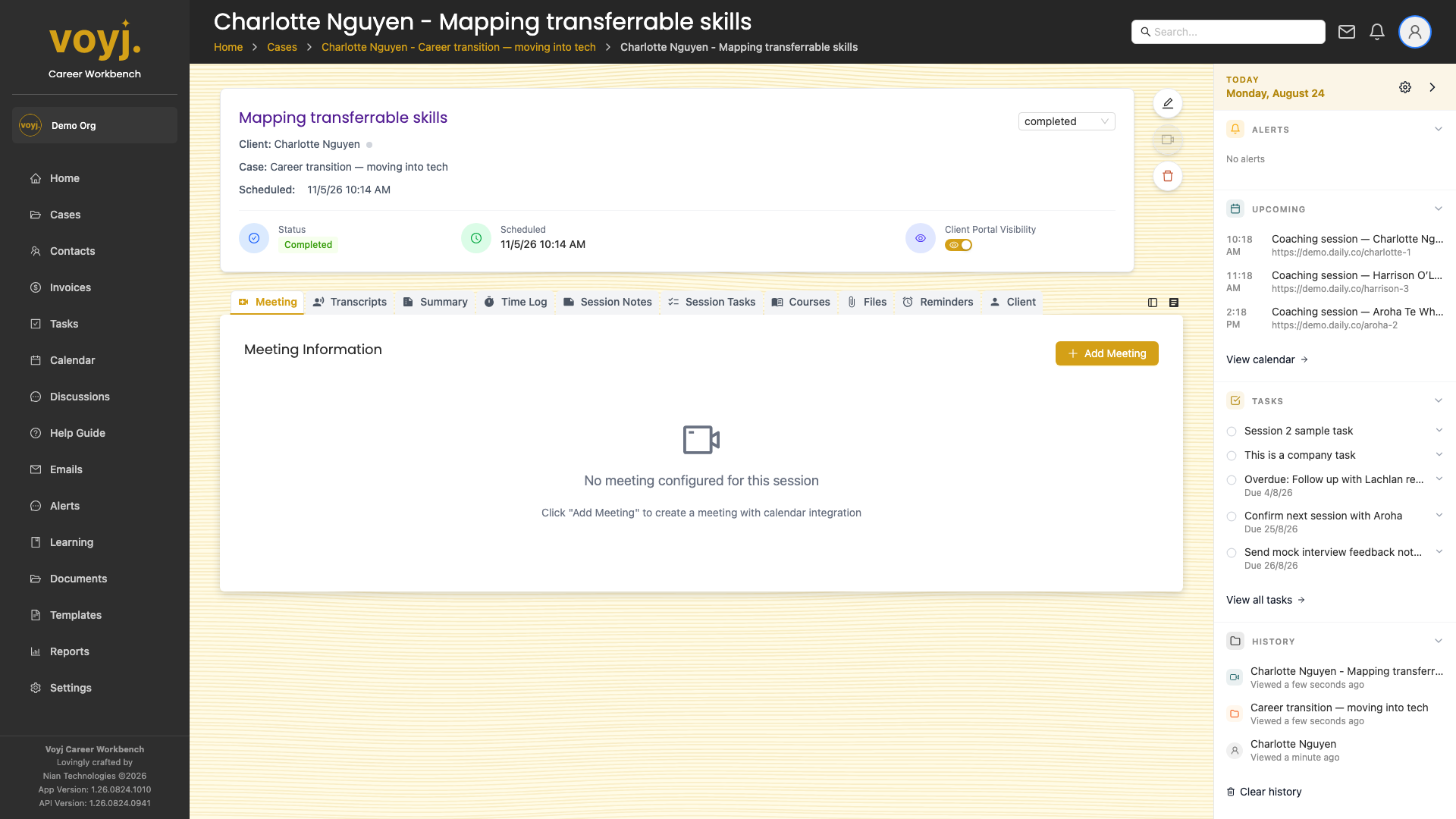
Tab reference
Every tab on the session detail page has its own page in this guide, with the screenshot and a step-by-step walkthrough.
- MeetingJoin or run the live session
- TranscriptsGenerated transcript of the recording
- SummaryCoach summary and client summary
- Time LogManual time entries for this session
- Session NotesFree-form notes tied to this session
- Session TasksFollow-up tasks from this session
- CoursesCourses linked to the case
- FilesWorksheets, recordings, exports
- RemindersEmail or in-app reminders for this session
- ClientSummary of the contact with quick links
Reschedule a session
- Open the session.
- Click the three-dot menu in the top right. Pick Reschedule.
- Choose a new date and time. The contact receives an updated invite by email.
Cancel a session
- Open the session.
- Click the three-dot menu and pick Cancel. Choose a close reason from the list (your admin defines the available reasons in Settings › Values › Session close reasons).
- Confirm. The session status moves to Cancelled and the client is notified.
Record a session
- When the session starts, open the session page and click Start. The meeting timer begins and the client can join.
- When the session ends, click End. Add a coach summary and (optionally) a client-visible summary, then save.
- If your organisation records sessions, the recording is uploaded automatically and appears in the Files tab once processing is complete.
Add a new session to a case
- Open the case.
- On the Sessions tab, click the plus icon in the top-right of the table.
- Pick a date, time, duration and meeting location (in-person address or online meeting URL).
- Save. The session appears in the case's Sessions tab and on your calendar.