
Cases
Updated 8 September 2026
Open a case
- Click Cases in the sidebar. The default view shows open cases with filters and search along the top.
- Click any case title. The detail page opens on the Goals & Timeline tab.
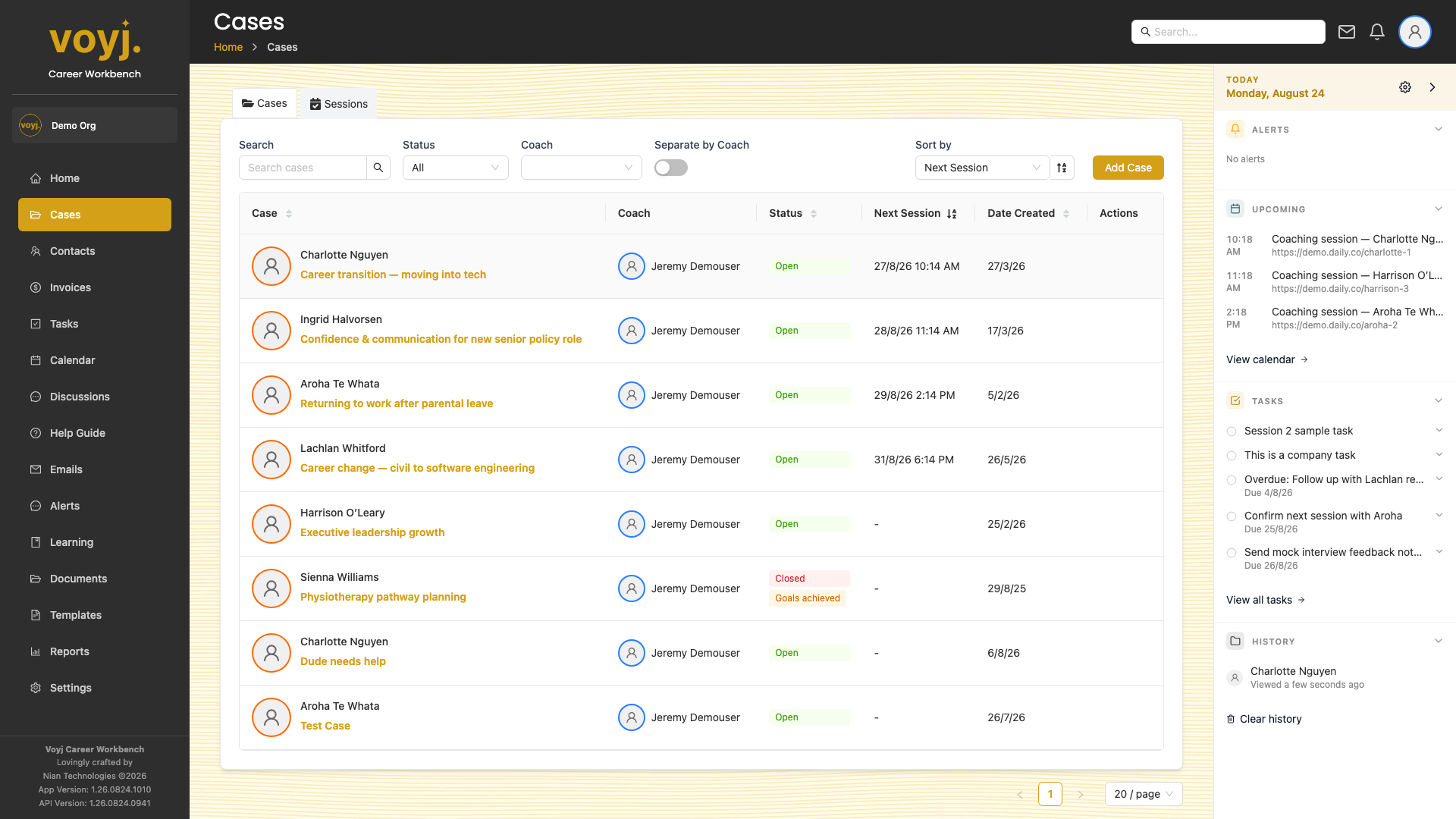
Filter the case list
- Use the search box to match against case title, contact name and reference number.
- Click a status filter chip to show only Open, Closed or Deleted cases.
- Click the coach dropdown to filter to one coach's caseload.
- Toggle Separate by coach to group cases under headings in the table.
Start a new case
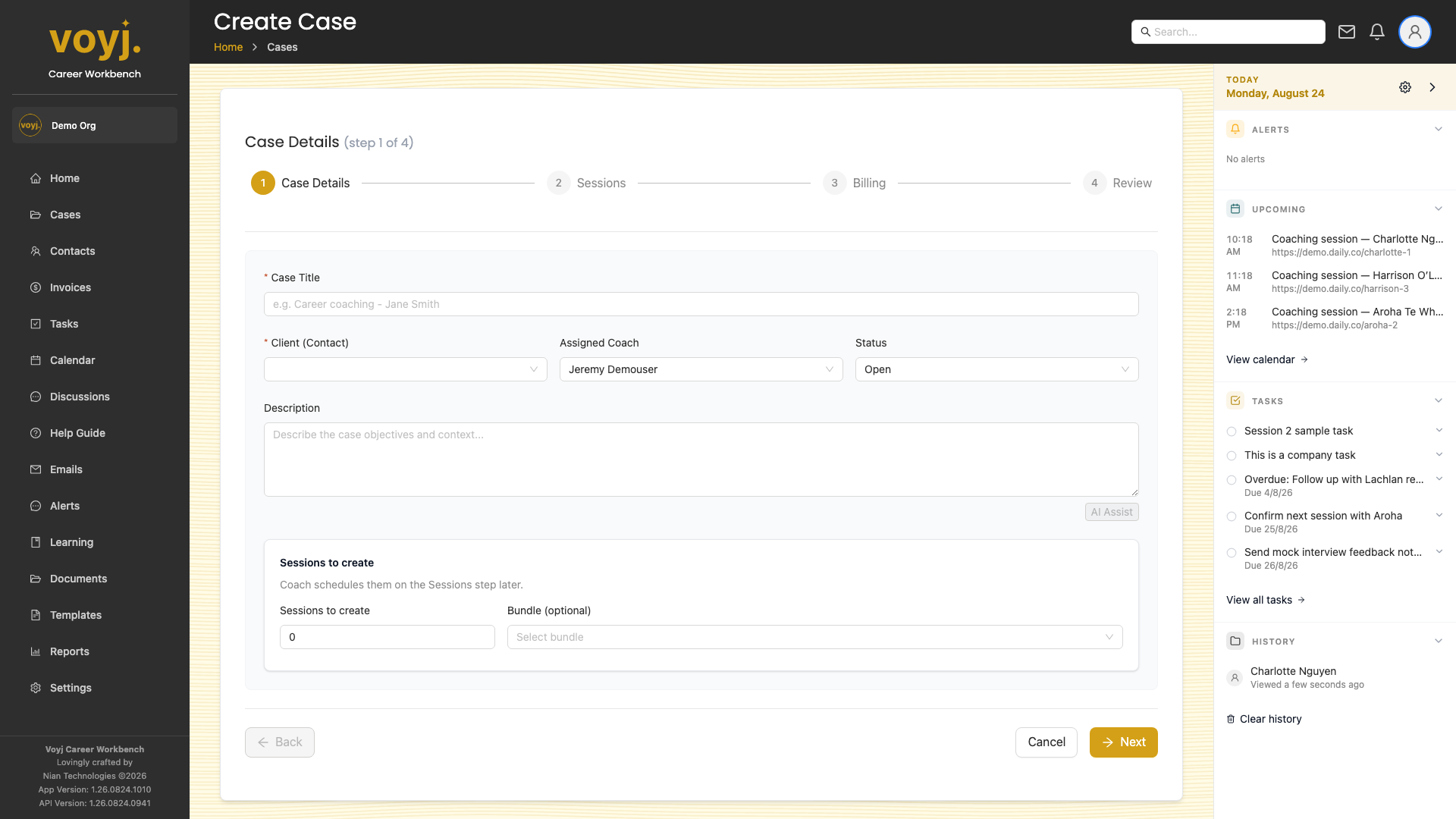
- Click + Add case. A four-step wizard opens.
- Step 1 — Case details. Pick the contact, write a title, choose a service or bundle, and pick a start date.
- Step 2 — Sessions. Choose how many sessions the case includes and when they recur.
- Step 3 — Billing. Set who pays — the contact, their company, or sponsor the case. Choose the billing method: per session or per case.
- Step 4 — Summary. Review the details and click Create case. The new case appears in your list and on the contact's page.
The case detail page
The case detail page has a header (title, status, contact, coach, dates) and a strip of tabs along the top. Each tab focuses on one aspect of the case. Use the tabs to jump to the section you need.
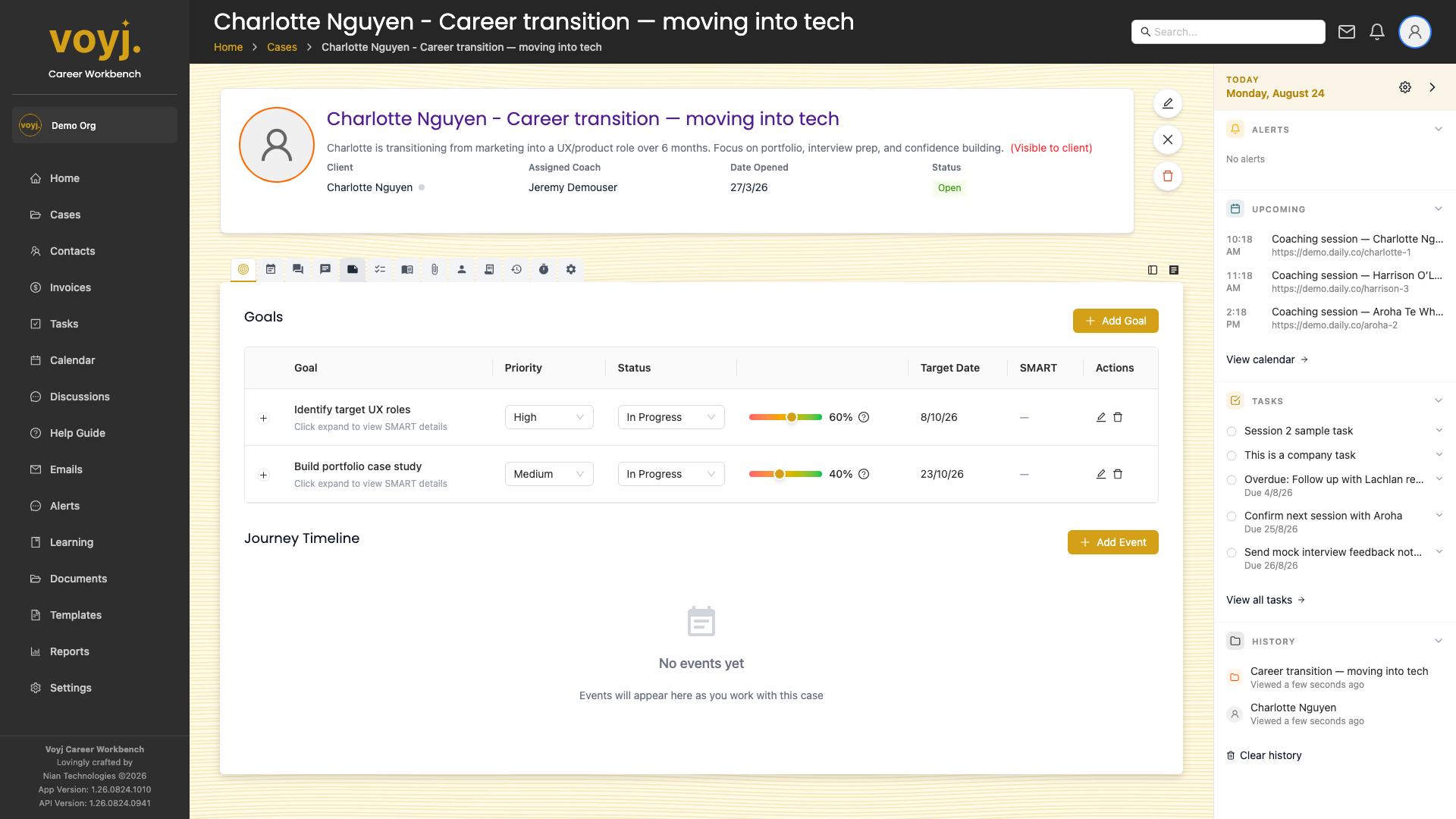
Tab reference
Every tab on the case detail page has its own dedicated page in this guide, with the screenshot, a step-by-step walkthrough, and a field reference where the tab includes forms or settings.
- Goals & TimelineSMART goals table and journey milestones
- SessionsEvery past and upcoming session in the case
- CommunicationsEmails, calls and texts linked to the case
- ChatLive chat with the client and other coaches
- NotesFree-form journal entries, optionally client-visible
- TasksTo-dos scoped to this case
- CoursesOnline courses assigned to the client
- FilesDocuments uploaded against this case
- ClientSummary of the contact with quick links
- InvoicingDraft and finalise invoices for the case
- HistoryAudit log of every change to the case
- Time LogManual time entries logged against the case
- SettingsPrivacy, sharing defaults, billing target, close
Close a case
- Open the case.
- Click the three-dot menu in the top-right and pick Close case.
- Choose a close reason from the list (your admin defines the available reasons in Settings › Values › Case close reasons).
- Confirm. The case moves to Closed. You can still open it, but new sessions cannot be scheduled against it. Use Reopen from the same menu to undo.
Delete a case (soft delete)
- Open the case.
- Click the three-dot menu and pick Delete. The case moves to the Deleted filter and disappears from the default list.
- Admins can restore deleted cases from the Deleted filter using the Restore action.